


Working with CLI Commands: User, Privilege & Global Configuration Modes
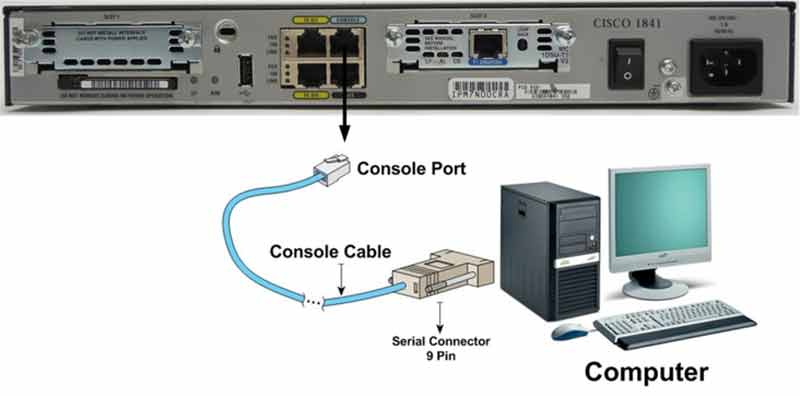
Lab Objective
- Connect to a Cisco router
- Identify router access modes
- Use basic configuration commands
- Use Cisco command help for guidance
- Use the history command
- Log out and disconnect from the router
🛠️ Equipment Needed for This Lab
- A computer with PuTTY installed
- A console cable (rollover cable)
- A Cisco router
Step 1: Connect to the Router and Work in the CLI
Connect to the router through PuTTY. During the boot process, answer No to the configuration dialog prompt:
Would you like to enter the initial configuration dialog? [yes/no]: no
After entering no, the router takes you to manual CLI configuration mode:
Router>
Step 2: Identify Router Access Modes
Cisco supports three access modes for its equipment. You must know these modes to work with Cisco gear:
- User Mode
- Privilege Mode
- Global Configuration Mode
User Mode (Exec Mode)
Router>
When you first enter the Cisco CLI (Command Line Interface), you’re in User Mode — also called Exec Mode. In this mode, you can run a limited set of basic show commands, plus commands like ping and telnet, and some basic troubleshooting commands.
You may be prompted for a password to enter this mode if one is configured. The > symbol indicates you’re in User Mode. Router or Switch represents the device’s hostname, which you can change.
Use ? in User Mode to see available commands:
Router>?
Privilege Mode
Router#
In Privilege Mode, you have more authority. To enter Privilege Mode from User Mode, use the enable command:
Router>enable
Router#
Note: A password may be required for Privilege Mode. If configured, enter it before entering Privilege Mode:
Router>enable
Password:
Router#
To return from Privilege Mode to User Mode, use the disable command:
Router#disable
Router>
To exit both Privilege Mode and User Mode, use logout or exit:
Router# logout
Router#exit
Step 3: Use Commands in Privilege Mode
The show command displays information from the router. Use it as shown below:
Router#show ?
Use show running-config to display the active configuration stored in RAM:
Router#show running-config
You can shorten it like this:
Router#show run
Use show history to see recent commands executed on the router:
Router#show history
By default, Cisco routers store the last 10 commands in RAM. Run show history to view them. You can change how many commands are stored — from 0 to 256:
Router#terminal history size 256
Common CLI Commands Reference
| Command | Description |
|---|---|
| Router>enable | Enters Privilege Mode. |
| Router#disable | Exits Privilege Mode and returns to User Mode. |
| Router#logout | Logs out of Privilege Mode and User Mode. |
| Router#exit | Exits Privilege Mode and User Mode. |
| Router#show running-config | Displays the active router configuration stored in RAM as running-config. |
| Router#show history | Displays recent commands executed on the router, stored in RAM. |
| Router#terminal history size 256 | Sets how many commands are stored in RAM. Range: 0 to 256. Setting 0 stores no commands. |
Step 4: Enter Global Configuration Mode
After entering Privilege Mode, type configure terminal — or the shorthand config t — to enter Global Configuration Mode. Most router and switch configuration commands run in this mode.
| Command | Description |
|---|---|
| Router>enable | Enters Privilege Mode. |
| Router#config t | Moves from Privilege Mode to Global Configuration Mode. |
| Router(config)# | Indicates Global Configuration Mode. |
| Router(config)#exit | Exits Global Configuration Mode and returns to Privilege Mode. |
Router# config t
Router(config)# exit
Router#
CLI Access Modes at a Glance
| Mode | Prompt | How to Enter | What You Can Do |
|---|---|---|---|
| User Mode | Router> |
Default on login | Basic show commands, ping, telnet |
| Privilege Mode | Router# |
enable |
All show commands, debugging, reload |
| Global Config Mode | Router(config)# |
config t |
Full router configuration |
🎉 Congratulations!
You’ve successfully configured a router. You can now power off the router, exit PuTTY, and take a break before continuing your practice.
✅ Key Takeaways
- Cisco IOS has three access modes: User, Privilege, and Global Configuration.
- User Mode (
>) offers limited show and troubleshooting commands. - Privilege Mode (
#) is entered with theenablecommand. - Global Configuration Mode (
config) is entered withconfig t. show running-configdisplays the active configuration in RAM.show historyshows recent commands — default is 10, max is 256.- Use
?at any prompt for context-sensitive help. - Use
disableto return to User Mode andlogoutorexitto disconnect.
