


Using Show Commands: A Complete Cisco IOS Reference Guide
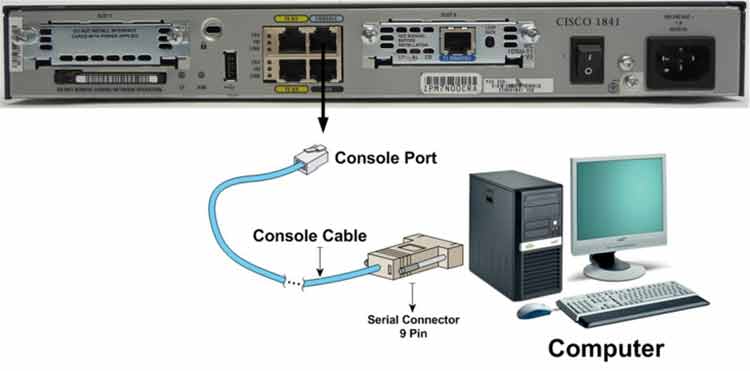
Lab Objective
- Display router configuration in RAM (running-config)
- Display router configuration in NVRAM (startup-config)
- Display information about the router’s IOS stored in Flash
- Use a range of essential show commands
🛠️ Equipment Needed for This Lab
- 1 Cisco router
- 1 PC with PuTTY installed
- Console cable (rollover cable)
Step 1: Connect to the Router
Connect to the router through PuTTY and enter User Mode. What do you see at the command prompt?
If you see the prompt below, you’ve successfully entered User Mode. If not, check the console cable connection between the router and PC.
Router>
Step 2: Use the ? Help Command
After connecting to the router, use the enable command to enter Privileged Mode. If the mode is password-protected, enter the password as shown below:
Router>enable
Password:
Router#
Now type the show command followed by ? as shown below. What output do you see?
Router#show ?
Are all the commands available after the show command displayed?
Essential Show Commands Reference
| Command | Description |
|---|---|
| Router#show interface | Displays statistics for all router interfaces. |
| Router#show interface serial 0/0/0 | Displays statistics for a specific interface. Add the interface name after show interface to see details for that interface only. |
| Router#show ip interface brief | Displays a summary of interfaces — names, IP addresses, and status. |
| Router#show interfaces stats | Displays all router interface names and their status. |
| Router#show controllers serial 0/0/0 | Displays hardware information for the Serial 0/0/0 interface. |
| Router#show clock | Displays the clock configured on the router. |
| Router#show hosts | Displays hostnames registered with IP addresses on the router. We’ll cover hostname-to-IP mapping in future labs. |
| Router#show users | Displays all users connected to the router through Telnet, Console, AUX, or SSH. |
| Router#show history | Displays recently executed commands on the router. |
| Router#show flash | Displays Flash memory information and the IOS file stored on it. |
| Router#show version | Displays IOS version, router model, NVRAM, and Flash memory amounts. |
| Router#show arp | Displays the ARP Cache table — MAC-to-IP address mappings. |
| Router#show protocol | Displays IP addresses and interface status for the router. |
| Router#show startup-configuration | Displays the contents of the startup-config file stored in NVRAM. |
| Router#show running-configuration | Displays the contents of the running-config file stored in RAM. |
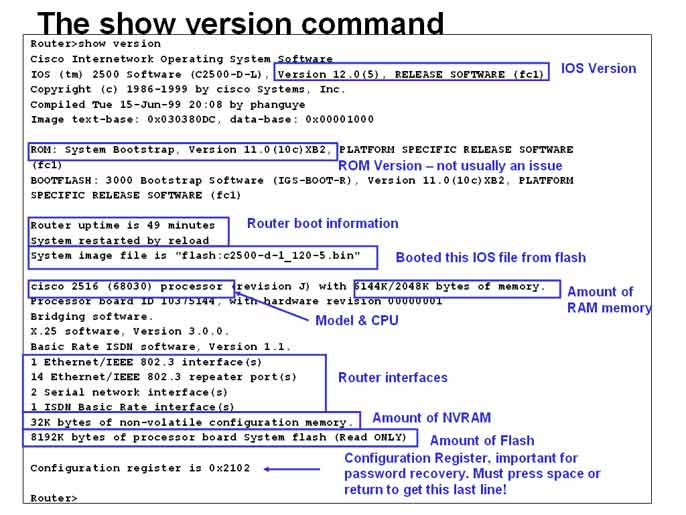
Step 3: Display IOS Version with show version
Use the show version command to display IOS version information:
Router#show version
After running show version, answer these questions by finding the answers in the command output:
- What is the router’s IOS version?
- What is the IOS file name?
- What is the router model and CPU?
- Where is the IOS located on the router?
- What are the interface types and count?
- How much CPU and RAM does the router have?
- How much Flash memory is available?
- How much NVRAM is available?
Step 4: Display Time and Date with show clock
Run the show clock command:
Router#show clock
What information do you see in the output of show clock?
Step 5: Display Connected Users with show users
Run the show users command:
Router#show users
What information do you see in the output? Is any user connected through Console, Telnet, AUX, or SSH?
Step 6: Display the ARP Table with show arp
Run the show arp command:
Router#show arp
What information do you see in the output of show arp?
Step 7: Display Flash Memory with show flash
Run the show flash command:
Router#show flash
After running show flash, answer these questions from the command output:
- How much Flash memory is available for use?
- What files are stored in Flash?
- What is the total size of the router’s Flash memory?
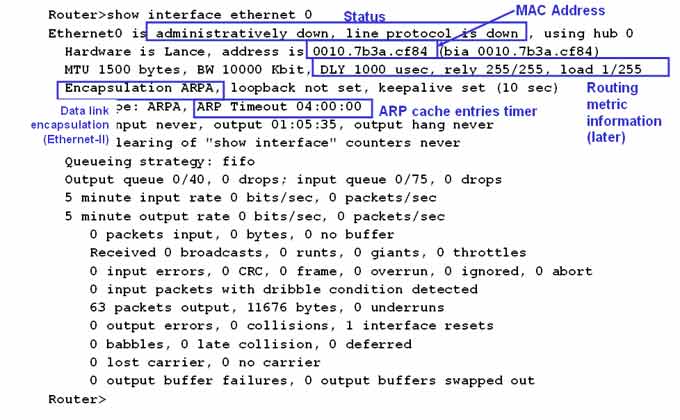
Step 8: Display Interface Statistics with show interface
Run the show interface command on the router:
Router#show interface
Review the output carefully — pay attention to the FastEthernet and Serial interface details. Then answer these questions:
- What is the interface status?
- What is the interface’s MAC address?
- What is the interface encapsulation type?
- What is the MTU?
- What is the reliability?
- What is the load?
- What is the bandwidth (BW)?
- What is the delay (DLY)?
Heads up: MTU, reliability, load, BW, and DLY will be covered in full detail in future labs. For now, just note these values so you can recognize them later.
Step 9: Display Layer 3 Protocol Info with show protocol
Run the show protocol command on the router:
Router#show protocol
What information do you see in the output of show protocol? The command displays Layer 3 protocol information — including IP and IPX — plus IP addresses and interface status.
Quick Reference: Show Commands by Purpose
| Category | Command | What It Shows |
|---|---|---|
| Configuration | show running-config | Active config in RAM |
| Configuration | show startup-config | Saved config in NVRAM |
| System | show version | IOS, model, CPU, RAM, Flash |
| System | show flash | Flash memory and IOS files |
| System | show clock | Time and date |
| Interfaces | show interface | Detailed interface stats |
| Interfaces | show ip interface brief | Interface summary with IPs |
| Interfaces | show interfaces stats | Interface names and status |
| Interfaces | show controllers serial 0/0/0 | Serial hardware details |
| Users | show users | Connected users |
| Users | show history | Recent commands |
| Users | show hosts | Hostname-to-IP mappings |
| Protocols | show arp | ARP cache table |
| Protocols | show protocol | Layer 3 IP and interface status |
✅ Key Takeaways
- Type
show ?in Privilege Mode to see all available show commands. show running-configdisplays the active config in RAM.show startup-configdisplays the saved config in NVRAM.show versionreveals IOS version, router model, CPU, RAM, Flash, and NVRAM.show flashshows Flash memory size and stored IOS files.show interfaceshows status, MAC, encapsulation, MTU, BW, and DLY.show ip interface briefgives a one-line summary of every interface.show usersshows everyone connected via Console, Telnet, AUX, or SSH.show arpdisplays the MAC-to-IP mapping table.show protocolshows Layer 3 protocol info and interface status.
