


Connecting a Router to a LAN: Ethernet, FastEthernet & GigabitEthernet
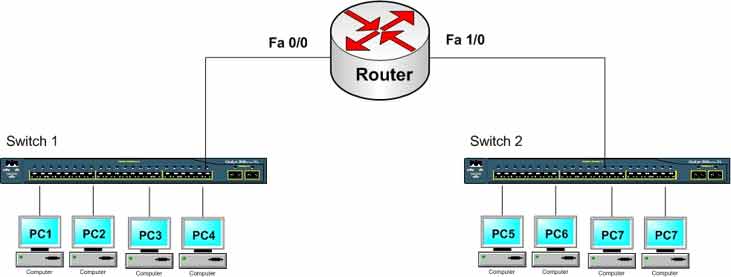
Lab Objective
- Identify Ethernet, FastEthernet, GigabitEthernet, and 10 GigabitEthernet interfaces used for LAN connections
- Find the correct network cable connection point on the router to link to a PC, hub, or switch
- Choose the right cable type for connecting a router to a PC, hub, or switch
This lab focuses on identifying Ethernet, FastEthernet, GigabitEthernet, and 10 GigabitEthernet interfaces and connecting them to devices like hubs, switches, and other network gear. We assume the router interface is already configured, enabled, and has an IP address.
Important: Router interfaces are shutdown by default. Use the no shutdown command to enable an interface.
🛠️ Equipment Needed for This Lab
- 1 Cisco router with an Ethernet, FastEthernet, GigabitEthernet, or 10 GigabitEthernet interface
- 1 PC with a 10/100/1000 network card
- Several straight-through cables for connecting the router to network devices like hubs or switches
Step 1: Identify Ethernet Interfaces on the Router
Look at the interfaces on the back of the router. What interfaces do you see? What’s your router model? _____________
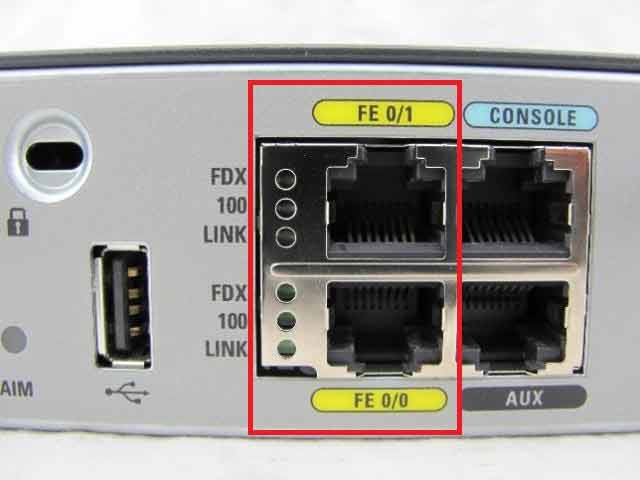
Depending on your router model, you’ll see Ethernet, FastEthernet, GigabitEthernet, or 10 GigabitEthernet interfaces. Use these interfaces to connect to the internal network (LAN). The image below shows two FastEthernet interfaces labeled FE 0/0 and FE 0/1.
Remember: Router interfaces are limited and valuable. PCs, servers, and other computers don’t connect directly to the router. Instead, the router connects to devices like hubs or switches — and computers connect to those hubs and switches.
Research Activity: Compare Router Interface Types
Use Google Image Search to look up the Ethernet, FastEthernet, and GigabitEthernet interfaces on these router models. Record your observations in the table below:
Router models: 1841, 2801, 2811, 2821, 2851, 1921, 1941, 2901, 2911, 2951, 3825, 3845, 3925, 3945
| Router Model | LAN Interface Type | Number of Interfaces | Notes |
|---|---|---|---|
| 1841 | FastEthernet | 2 | FE 0/0, FE 0/1 |
| 2811 | FastEthernet | 2 | FE 0/0, FE 0/1 |
| 1921 | GigabitEthernet | 2 | GE 0/0, GE 0/1 |
| 1941 | GigabitEthernet | 2 | GE 0/0, GE 0/1 |
| 2901 | GigabitEthernet | 2 | GE 0/0, GE 0/1 |
| 2911 | GigabitEthernet | 3 | GE 0/0, GE 0/1, GE 0/2 |
| 2951 | GigabitEthernet | 3 | GE 0/0, GE 0/1, GE 0/2 |
| 3925 | GigabitEthernet | 3 | GE 0/0, GE 0/1, GE 0/2 |
| 3945 | GigabitEthernet | 3 | GE 0/0, GE 0/1, GE 0/2 |
Step 2: Choose the Right Cable for Router-to-Hub or Router-to-Switch
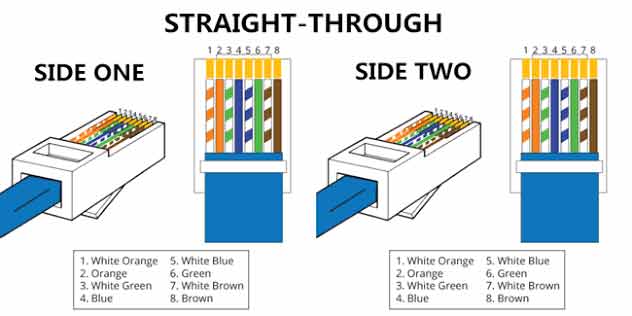
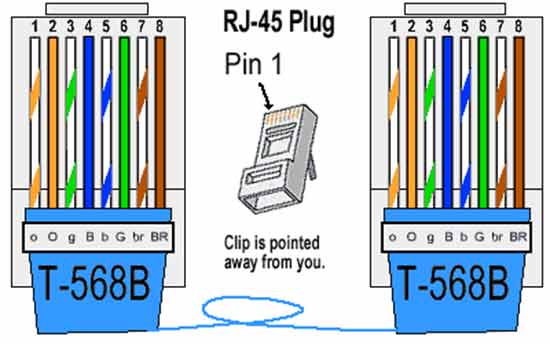
Use a straight-through cable to connect a router to a hub or switch. In straight-through cables, each wire color has a specific position in the RJ-45 connector.
Straight-through cables follow the T568B standard. The image below shows the wiring diagram for a straight-through cable.
Where to Use Straight-Through Cables
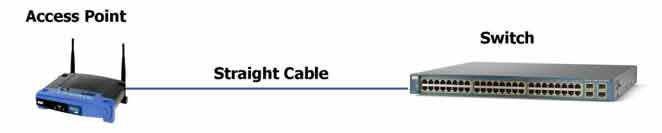
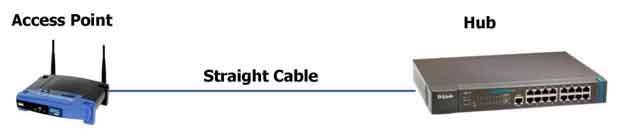
Straight-through cables connect these device pairs:
- PC to Switch
- PC to Hub
- Router to Switch
- Router to Hub
- Switch to Access Point
- Hub to Access Point




Step 3: Verify the Router-to-Hub or Router-to-Switch Connection
After connecting the cable between the router and switch, power them on. Check the LED on the switch to see if the link light comes on. If the link light is on, your connection is correct.
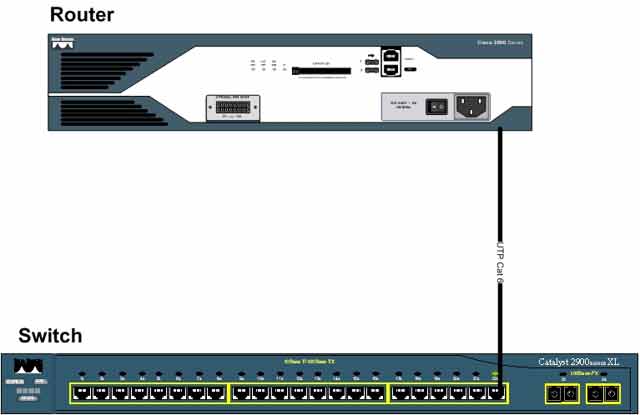
Tip: If the link LED doesn’t light up, check the cable seating, try a different cable, and verify the interface isn’t shut down with the no shutdown command.
LAN Interface Types at a Glance
| Interface | Speed | Common Use |
|---|---|---|
| Ethernet | 10 Mbps | Legacy LAN connections |
| FastEthernet | 100 Mbps | Standard LAN connections |
| GigabitEthernet | 1000 Mbps (1 Gbps) | Modern LAN connections |
| 10 GigabitEthernet | 10,000 Mbps (10 Gbps) | High-speed backbone and data center |
✅ Key Takeaways
- Routers use Ethernet, FastEthernet, GigabitEthernet, or 10 GigabitEthernet interfaces to connect to a LAN.
- Use a straight-through cable wired to T568B to connect a router to a hub or switch.
- Router interfaces are shutdown by default — enable them with
no shutdown. - PCs and servers connect to switches or hubs, not directly to the router.
- The switch link LED confirms a successful physical connection.
- Straight-through cables also connect PC-to-switch, PC-to-hub, switch-to-AP, and hub-to-AP.
