

Pass Microsoft AI-102 in Just 3 Days – Stress-Free, No Study Needed!
Have questions? Contact us directly on WhatsApp for quick support!
You have an Azure Cognitive Search instance that indexes purchase orders by using Form Recognizer.
You need to analyze the extracted information by using Microsoft Power BI. The solution must minimize development effort.
What should you add to the indexer?
- A. a projection group
- B. a table projection
- C. a file projection
- D. an object projection
Note: This question is part of a series of questions that present the same scenario. Each question in the series contains a unique solution that might meet the stated goals. Some question sets might have more than one correct solution, while others might not have a correct solution.
After you answer a question in this section, you will NOT be able to return to it. As a result, these questions will not appear in the review screen.
You have an Azure Cognitive Search service.
During the past 12 months, query volume steadily increased.
You discover that some search query requests to the Cognitive Search service are being throttled.
You need to reduce the likelihood that search query requests are throttled.
Solution: You add replicas.
Does this meet the goal?
- A. Yes
- B. No
SIMULATION –
You need to create a Text Analytics service named Text12345678, and then enable logging for Text12345678. The solution must ensure that any changes to
Text12345678 will be stored in a Log Analytics workspace.
To complete this task, sign in to the Azure portal.
Answer:
Step 1: Sign in to the QnA portal.
Step 2: Create an Azure Cognitive multi-service resource:
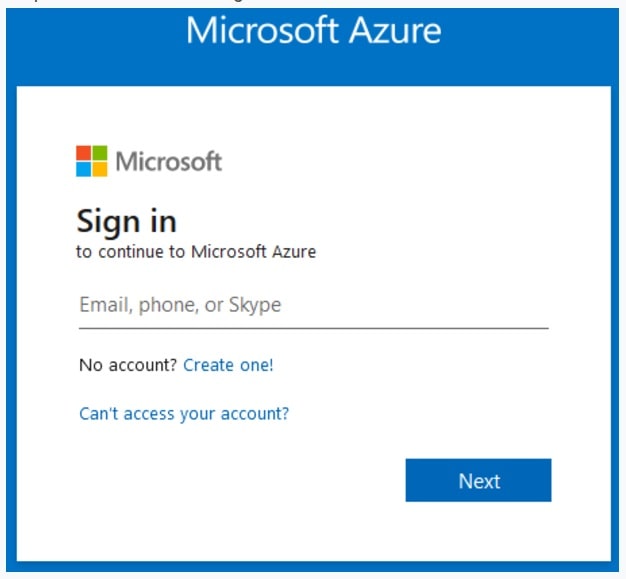
Step 3: On the Create page, provide the following information.
Name: Text12345678 –
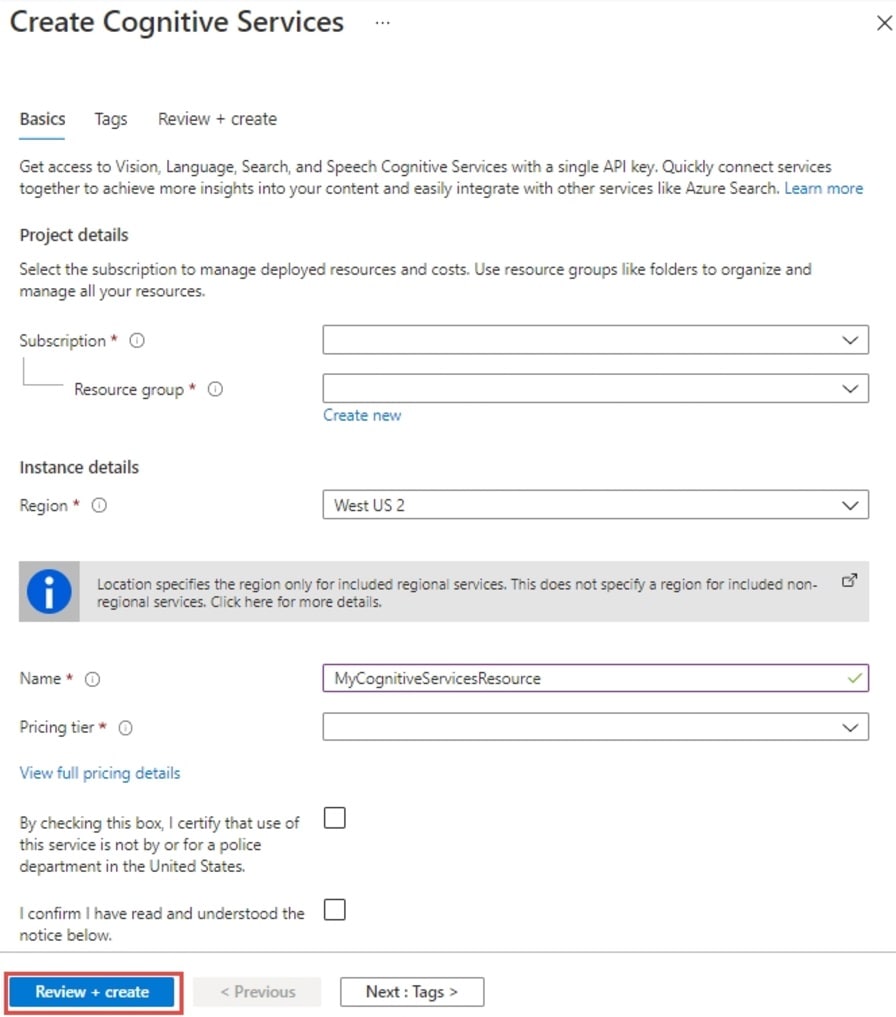
Step 4: Configure additional settings for your resource as needed, read and accept the conditions (as applicable), and then select Review + create.
Step 5: Navigate to the Azure portal. Then locate and select The Text Analytics service resource Text12345678 (which you created in Step 4).
Step 6: Next, from the left-hand navigation menu, locate Monitoring and select Diagnostic settings. This screen contains all previously created diagnostic settings for this resource.
Step 7: Select + Add diagnostic setting.
Step 8: When prompted to configure, select the storage account and OMS workspace that you’d like to use to store you diagnostic logs. Note: If you don’t have a storage account or OMS workspace, follow the prompts to create one.
Step 9: Select Audit, RequestResponse, and AllMetrics. Then set the retention period for your diagnostic log data. If a retention policy is set to zero, events for that log category are stored indefinitely.
Step 10: Click Save.
It can take up to two hours before logging data is available to query and analyze. So don’t worry if you don’t see anything right away.
Reference:
https://docs.microsoft.com/en-us/azure/cognitive-services/cognitive-services-apis-create-account https://docs.microsoft.com/en-us/azure/cognitive-services/diagnostic-logging
SIMULATION –
You need to create a search service named search12345678 that will index a sample Azure Cosmos DB database named hotels-sample. The solution must ensure that only English language fields are retrievable.
To complete this task, sign in to the Azure portal.
Answer:
Part 1: Create a search service search12345678
Step 1: Sign in to the QnA portal.
Step 2: Create an Azure Cognitive multi-service resource:
Step 3: On the Create page, provide the following information.
Name: search12345678 –
Step 4: Click Review + create –
Part 2: Start the Import data wizard and create a data source
Step 5: Click Import data on the command bar to create and populate a search index.

Step 6: In the wizard, click Connect to your data > Samples > hotels-sample. This data source is built-in. If you were creating your own data source, you would need to specify a name, type, and connection information. Once created, it becomes an “existing data source” that can be reused in other import operations.
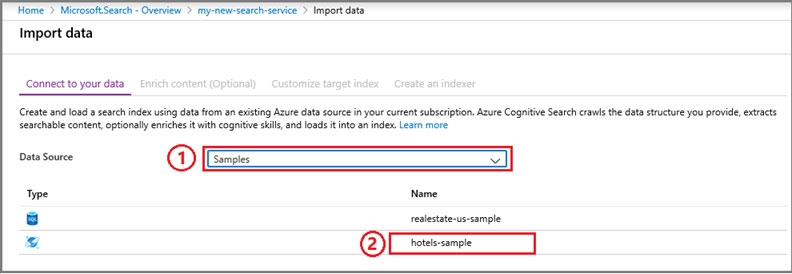
Step 7: Continue to the next page.
Step 8: Skip the “Enrich content” page
Step 9: Configure index.
Make sure English is selected for the fields.
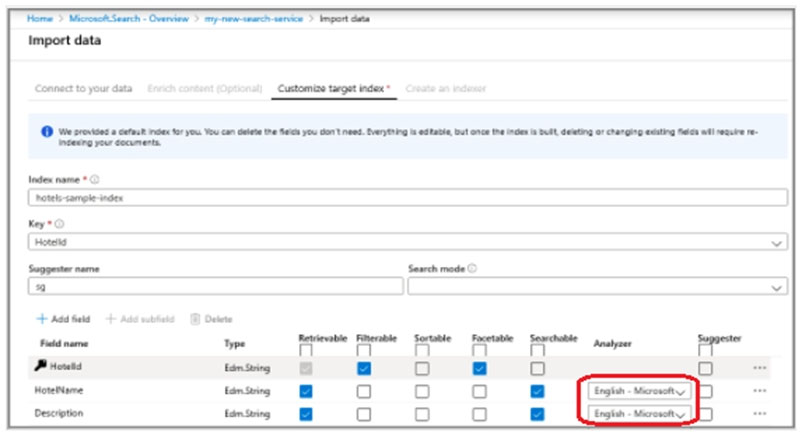
Step 10: Continue and finish the wizard.
Reference:
https://docs.microsoft.com/en-us/azure/cognitive-services/cognitive-services-apis-create-account https://docs.microsoft.com/en-us/azure/search/search-get-started-portal
SIMULATION –
You plan to create a solution to generate captions for images that will be read from Azure Blob Storage.
You need to create a service in Azure Cognitive Services for the solution. The service must be named captions12345678 and must use the Free pricing tier.
To complete this task, sign in to the Azure portal.
Answer:
Part 1: Create a search service captions12345678
Step 1: Sign in to the QnA portal.
Step 2: Create an Azure Cognitive multi-service resource:
Step 3: On the Create page, provide the following information.
Name: captions12345678ֲ¨
Pricing tier: Free –
Step 4: Click Review + create –
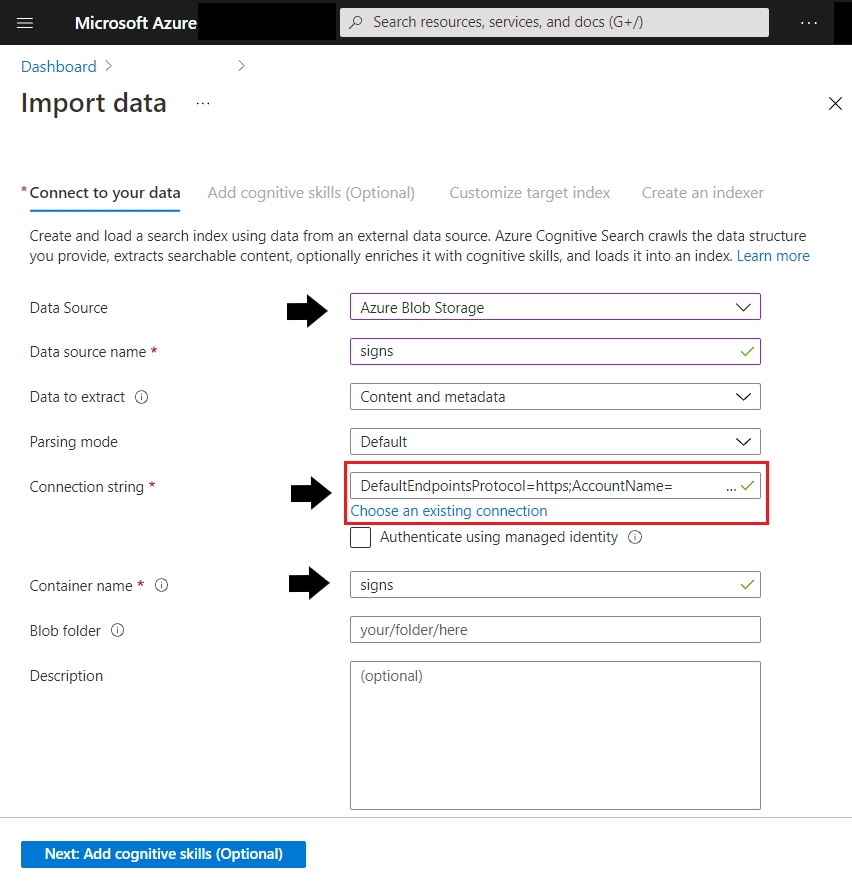
(Step 5: Create a data source
In Connect to your data, choose Azure Blob Storage. Choose an existing connection to the storage account and container you created. Give the data source a name, and use default values for the rest.)
Reference:
https://docs.microsoft.com/en-us/azure/search/search-create-service-portal https://docs.microsoft.com/en-us/azure/search/cognitive-search-quickstart-ocr
SIMULATION –
You need to create a Form Recognizer resource named fr12345678.
Use the Form Recognizer sample labeling tool at https://fott-2-1.azurewebsites.net/ to analyze the invoice located in the C:\Resources\Invoices folder.
Save the results as C:\Resources\Invoices\Results.json.
To complete this task, sign in to the Azure portal and open the Form Recognizer sample labeling tool.
Answer:
Step 1: Sign in to the Azure Portal.
Step 2: Navigate to the Form Recognizer Sample Tool (at https://fott-2-1.azurewebsites.net)
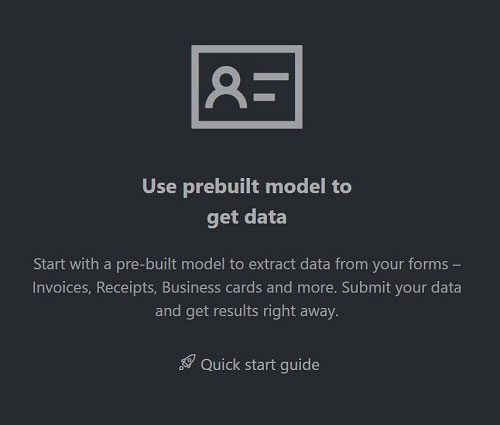
Step 3: On the sample tool home page select Use prebuilt model to get data.
Step 4: Select the Form Type you would like to analyze from the dropdown window.
Step 5: In the Source: URL field, paste the selected URL and select the Fetch button.
Step 6: In the Choose file for analysis use the file in the C:\Resources\Invoices folder and select the Fetch button.
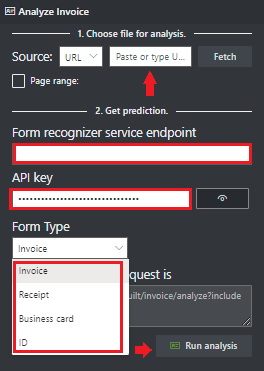
Step 7: Select Run analysis. The Form Recognizer Sample Labeling tool will call the Analyze Prebuilt API and analyze the document.
Step 8: View the results – see the key-value pairs extracted, line items, highlighted text extracted and tables detected.
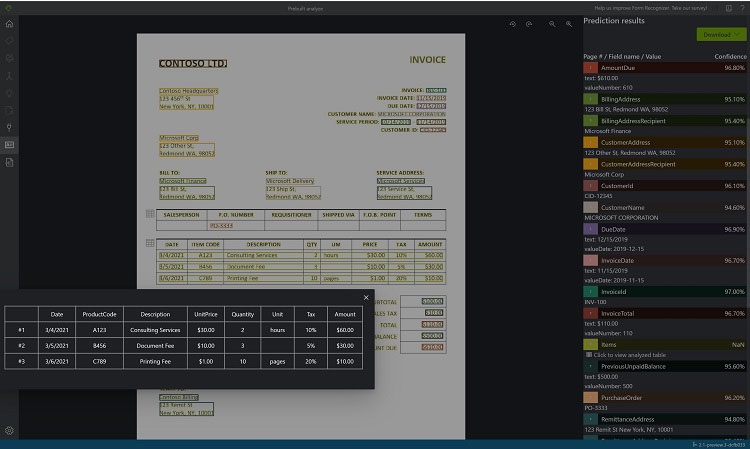
Step 9: Save the results as C:\Resources\Invoices\Results.json.
Reference:
https://docs.microsoft.com/en-us/azure/applied-ai-services/form-recognizer/quickstarts/try-sample-label-tool
You have a factory that produces food products.
You need to build a monitoring solution for staff compliance with personal protective equipment (PPE) requirements. The solution must meet the following requirements:
* Identify staff who have removed masks or safety glasses.
* Perform a compliance check every 15 minutes.
* Minimize development effort.
* Minimize costs.
Which service should you use?
- A. Face
- B. Computer Vision
- C. Azure Video Analyzer for Media (formerly Video Indexer)
You have an Azure Cognitive Search solution and a collection of blog posts that include a category field.
You need to index the posts. The solution must meet the following requirements:
* Include the category field in the search results.
* Ensure that users can search for words in the category field.
* Ensure that users can perform drill down filtering based on category.
Which index attributes should you configure for the category field?
- A. searchable, sortable, and retrievable
- B. searchable, facetable, and retrievable
- C. retrievable, filterable, and sortable
- D. retrievable, facetable, and key
SIMULATION –
Use the following login credentials as needed:
To enter your username, place your cursor in the Sign in box and click on the username below.
To enter your password, place your cursor in the Enter password box and click on the password below.
Azure Username: admin@abc.com –
Azure Password: XXXXXXXXXXXX –
The following information is for technical support purposes only:
Lab Instance: 12345678 –
Task –
You plan to build an API that will identify whether an image includes a Microsoft Surface Pro or Surface Studio.
You need to deploy a service in Azure Cognitive Services for the API. The service must be named AAA12345678 and must be in the East US Azure region. The solution must use the Free pricing tier.
To complete this task, sign in to the Azure portal.
Answer:
Step 1: In the Azure dashboard, click Create a resource.
Step 2: In the search bar, type “Cognitive Services.”
You’ll get information about the cognitive services resource and a legal notice. Click Create.
Step 3: You’ll need to specify the following details about the cognitive service (refer to the image below for a completed example of this page):
Subscription: choose your paid or trial subscription, depending on how you created your Azure account.
Resource group: click create new to create a new resource group or choose an existing one.
Region: choose the Azure region for your cognitive service. Choose: East US Azure region.
Name: choose a name for your cognitive service. Enter: AAA12345678
Pricing Tier: Select: Free pricing tier
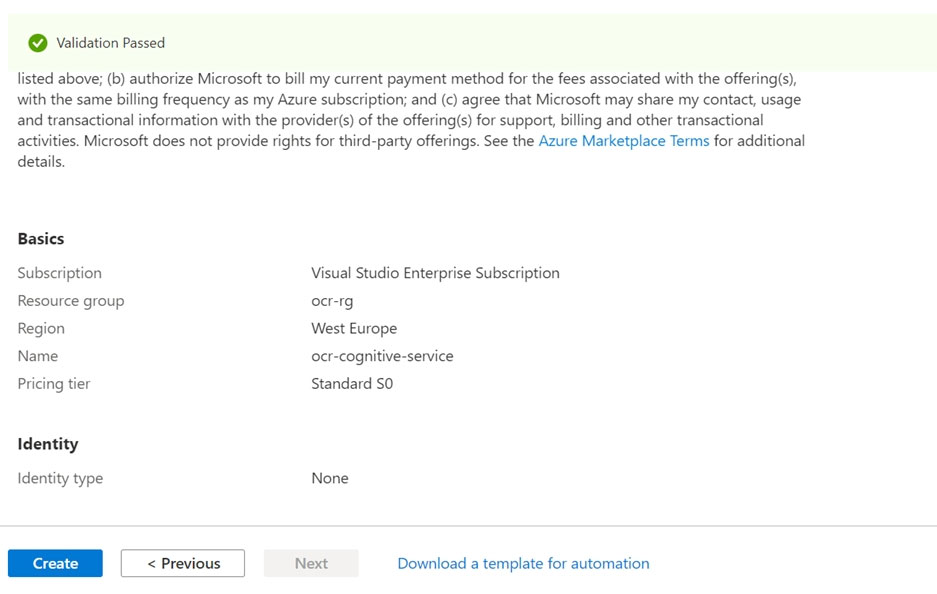
Step 4: Review and create the resource, and wait for deployment to complete. Then go to the deployed resource.
Note: The Computer Vision Image Analysis service can extract a wide variety of visual features from your images. For example, it can determine whether an image contains adult content, find specific brands or objects, or find human faces.
Tag visual features –
Identify and tag visual features in an image, from a set of thousands of recognizable objects, living things, scenery, and actions. When the tags are ambiguous or not common knowledge, the API response provides hints to clarify the context of the tag. Tagging isn’t limited to the main subject, such as a person in the foreground, but also includes the setting (indoor or outdoor), furniture, tools, plants, animals, accessories, gadgets, and so on.
Try out the image tagging features quickly and easily in your browser using Vision Studio.
Reference:
https://docs.microsoft.com/en-us/learn/modules/analyze-images-computer-vision/3-analyze-images https://docs.microsoft.com/en-us/azure/cognitive-services/computer-vision/overview-image-analysis
SIMULATION –
Use the following login credentials as needed:
To enter your username, place your cursor in the Sign in box and click on the username below.
To enter your password, place your cursor in the Enter password box and click on the password below.
Azure Username: admin@abc.com –
Azure Password: XXXXXXXXXXXX –
The following information is for technical support purposes only:
Lab Instance: 12345678 –
Task –
You need to build an API that uses the service in Azure Cognitive Services named AAA12345678 to identify whether an image includes a Microsoft Surface Pro or
Surface Studio.
To achieve this goal, you must use the sample images in the C:\Resources\Images folder.
To complete this task, sign in to the Azure portal.
Answer:
Step 1: In the Azure dashboard, click Create a resource.
Step 2: In the search bar, type “Cognitive Services.”
You’ll get information about the cognitive services resource and a legal notice. Click Create.
Step 3: You’ll need to specify the following details about the cognitive service (refer to the image below for a completed example of this page):
Subscription: choose your paid or trial subscription, depending on how you created your Azure account.
Resource group: click create new to create a new resource group or choose an existing one.
Region: choose the Azure region for your cognitive service. Choose: East US Azure region.
Name: choose a name for your cognitive service. Enter: AAA12345678
Pricing Tier: Select: Free pricing tier
Step 4: Review and create the resource, and wait for deployment to complete. Then go to the deployed resource.
Note: The Computer Vision Image Analysis service can extract a wide variety of visual features from your images. For example, it can determine whether an image contains adult content, find specific brands or objects, or find human faces.
Tag visual features –
Identify and tag visual features in an image, from a set of thousands of recognizable objects, living things, scenery, and actions. When the tags are ambiguous or not common knowledge, the API response provides hints to clarify the context of the tag. Tagging isn’t limited to the main subject, such as a person in the foreground, but also includes the setting (indoor or outdoor), furniture, tools, plants, animals, accessories, gadgets, and so on.
Try out the image tagging features quickly and easily in your browser using Vision Studio.
Reference:
https://docs.microsoft.com/en-us/learn/modules/analyze-images-computer-vision/3-analyze-images https://docs.microsoft.com/en-us/azure/cognitive-services/computer-vision/overview-image-analysis