


Ethernet, FastEthernet & GigabitEthernet Configuration on a Cisco Router
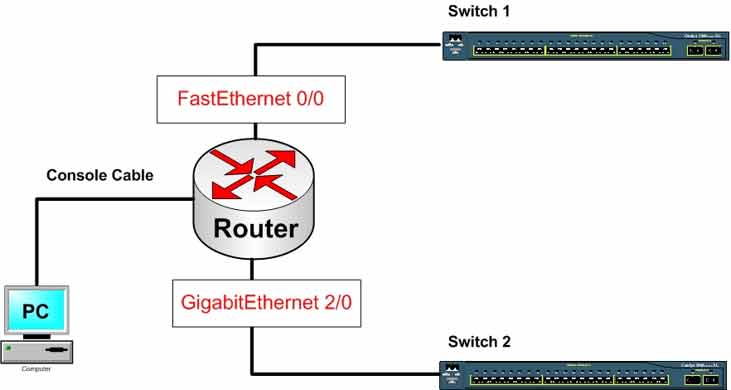
Configure FastEthernet 0/0 and GigabitEthernet 2/0 on a Cisco router. Assign IP addresses, enable the interfaces, save the config, and verify with show commands.
Lab Objective
- Configure Ethernet, FastEthernet, and GigabitEthernet interfaces
- Configure IP addresses on LAN interfaces
🛠️ Equipment Needed for This Lab
- 1 Cisco router
- 1 PC with PuTTY installed
- 2 Cisco switches
- Console cable (rollover cable)
Router Configuration Overview
| Router Name | Interface Name | IP Address |
|---|---|---|
| Router | FastEthernet 0/0 | 192.168.1.1 |
| Router | GigabitEthernet 2/0 | 192.168.2.1 |
Step 1: Connect to the Router
Connect to the router through PuTTY and enter User Mode. What do you see at the command prompt?
If you see the prompt below, you’ve successfully entered User Mode. If not, check the console cable connection between the router and PC.
Router>
Step 2: Set the Privilege Mode Password
Use the enable secret command to set a password for entering Privilege Mode on the router:
Router(config)#enable secret CCNA
Step 3: Configure the FastEthernet 0/0 Interface
Configure FastEthernet 0/0 with IP address 192.168.1.1 and enable it:
Router(config)#interface fastEthernet 0/0
Router(config-if)#ip address 192.168.1.1 255.255.255.0
Router(config-if)#no shutdown
Router(config-if)#exit
Router(config)#
| Command | Description |
|---|---|
| Router(config)#interface fastEthernet 0/0 | Enters Interface Configuration Mode for FastEthernet 0/0. |
| Router(config-if)#ip address 192.168.1.1 255.255.255.0 | Assigns IP 192.168.1.1 with mask 255.255.255.0 to the interface. |
| Router(config-if)#no shutdown | Enables the interface. Router interfaces are shut down by default. |
| Router(config-if)#exit | Returns to Global Configuration Mode. |
Step 4: Configure the GigabitEthernet 2/0 Interface
Configure GigabitEthernet 2/0 with IP address 192.168.2.1 and enable it:
Router(config)#interface gigabitEthernet 2/0
Router(config-if)#ip address 192.168.2.1 255.255.255.0
Router(config-if)#no shutdown
Router(config-if)#exit
Router(config)#
| Command | Description |
|---|---|
| Router(config)#interface gigabitEthernet 2/0 | Enters Interface Configuration Mode for GigabitEthernet 2/0. |
| Router(config-if)#ip address 192.168.2.1 255.255.255.0 | Assigns IP 192.168.2.1 with mask 255.255.255.0 to the interface. |
| Router(config-if)#no shutdown | Enables the interface. Router interfaces are shut down by default. |
| Router(config-if)#exit | Returns to Global Configuration Mode. |
Step 5: Save the Configuration to NVRAM
To save the configuration permanently, copy the running-config from RAM to the startup-config in NVRAM:
Router#copy running-config startup-config
Why this matters: Copying from running-config to startup-config preserves your configuration across reboots. If you leave the config only in RAM, it’s wiped when the router powers off.
Step 6: Display FastEthernet 0/0 Configuration
Use the following command to check the status of FastEthernet 0/0:
Router#show interface fastEthernet 0/0
Study the command output carefully — pay attention to the interface status (up/down), line protocol status, IP address, MTU, bandwidth, and encapsulation.
Step 7: Display GigabitEthernet 2/0 Configuration
Use the following command to check the status of GigabitEthernet 2/0:
Router#show interface gigabitEthernet 2/0
Study the command output carefully — compare the bandwidth and speed values to FastEthernet 0/0.
Ethernet Interface Types at a Glance
| Interface | Speed | Default BW | Default DLY |
|---|---|---|---|
| Ethernet | 10 Mbps | 10000 Kbit | 1000 usec |
| FastEthernet | 100 Mbps | 100000 Kbit | 100 usec |
| GigabitEthernet | 1000 Mbps (1 Gbps) | 1000000 Kbit | 10 usec |
| 10 GigabitEthernet | 10,000 Mbps (10 Gbps) | 10000000 Kbit | 1 usec |
Full Command Reference
| Command | Description |
|---|---|
| Router(config)#enable secret CCNA | Sets CCNA as the encrypted Privilege Mode password. |
| Router(config)#interface fastEthernet 0/0 | Enters Interface Configuration Mode for FastEthernet 0/0. |
| Router(config-if)#ip address 192.168.1.1 255.255.255.0 | Assigns IP 192.168.1.1/24 to FastEthernet 0/0. |
| Router(config-if)#no shutdown | Enables the interface. |
| Router(config)#interface gigabitEthernet 2/0 | Enters Interface Configuration Mode for GigabitEthernet 2/0. |
| Router(config-if)#ip address 192.168.2.1 255.255.255.0 | Assigns IP 192.168.2.1/24 to GigabitEthernet 2/0. |
| Router#copy running-config startup-config | Saves the configuration to NVRAM. |
| Router#show interface fastEthernet 0/0 | Displays FastEthernet 0/0 interface details. |
| Router#show interface gigabitEthernet 2/0 | Displays GigabitEthernet 2/0 interface details. |
✅ Key Takeaways
- Router interfaces are shut down by default — enable them with
no shutdown. - Assign IP addresses with
ip address [IP] [mask]. - FastEthernet runs at 100 Mbps, GigabitEthernet at 1000 Mbps.
- Use
show interface [name]to verify interface status and line protocol. - Both interfaces must be in different subnets (192.168.1.0/24 and 192.168.2.0/24).
- Save with
copy running-config startup-configto preserve settings across reboots. - Use
enable secret— notenable password— for stronger Privilege Mode security.
