


Routing Across 4 Networks with a Layer 3 Switch: Multi-Subnet Routing
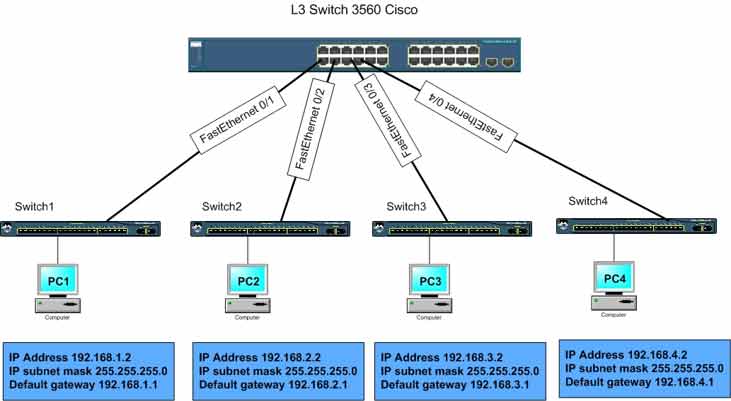
Lab Objective
- Route traffic across 4 subnets so every PC in each subnet can reach PCs in all other subnets using a Layer 3 switch
- Test connectivity between PCs in different subnets
🛠️ Equipment Needed for This Lab
- 1 Cisco 3560 Layer 3 switch
- 4 Cisco 2960 switches
- 4 PCs — one per subnet
Layer 3 Switch vs. Router
Layer 3 switches and routers both forward Layer 3 packets and do similar work — but they have key differences.
- Routers typically have fewer interfaces and ports than Layer 3 switches.
- Layer 3 switches support many Ethernet, FastEthernet, and even GigabitEthernet connections.
- Routers support professional routing protocols and all types of WAN connections.
- Layer 3 switches are used for internal network routing and rarely support WAN ports. For connecting multiple subnets inside a company, use a Layer 3 switch instead of a router — but if you need MPLS or E1 connections, use a router.
- ASIC hardware on Layer 3 switches plus high-speed ports delivers fast, efficient internal routing.
- A Layer 3 switch usually costs less than a router.
Best Practice
Use Layer 3 switches for internal subnet routing inside the organization. Use routers for WAN connections and advanced routing with external networks.
PC Configuration
| Computer | IP Address | Subnet Mask | Default Gateway | Subnet |
|---|---|---|---|---|
| PC1 | 192.168.1.2 | 255.255.255.0 | 192.168.1.1 | Subnet 1 |
| PC2 | 192.168.2.2 | 255.255.255.0 | 192.168.2.1 | Subnet 2 |
| PC3 | 192.168.3.2 | 255.255.255.0 | 192.168.3.1 | Subnet 3 |
| PC4 | 192.168.4.2 | 255.255.255.0 | 192.168.4.1 | Subnet 4 |
Switch 3560 Interface Configuration
| Switch 3560 Interface | IP Address | Connected Device | Connected Subnet |
|---|---|---|---|
| FastEthernet 0/1 | 192.168.1.1 | Switch1 | 192.168.1.0/24 |
| FastEthernet 0/2 | 192.168.2.1 | Switch2 | 192.168.2.0/24 |
| FastEthernet 0/3 | 192.168.3.1 | Switch3 | 192.168.3.0/24 |
| FastEthernet 0/4 | 192.168.4.1 | Switch4 | 192.168.4.0/24 |
❓ Questions to Consider
- What type of cable connects the four 2960 switches to the 3560 switch?
- What type of cable connects the 2960 switch ports to the PCs in each subnet?
Step 1: Configure the 3560 Switch and Set IP Addresses on Its Interfaces
First, enable the routing capability on the Layer 3 switch. Without this, the switch can’t route packets:
Switch#config t
Switch(config)#ip routing
Now configure FastEthernet 0/1. Convert it from its default Layer 2 mode to Layer 3, then assign an IP address:
Switch#config t
Switch(config)#interface fastEthernet 0/1
Switch(config)#no switchport
Switch(config-if)#ip address 192.168.1.1 255.255.255.0
Switch(config-if)#no shutdown
The no switchport command moves FastEthernet 0/1 out of Layer 2 mode and prepares it for Layer 3 operation — making it a routed port.
Configure FastEthernet 0/2:
Switch#config t
Switch(config)#interface fastEthernet 0/2
Switch(config)#no switchport
Switch(config-if)#ip address 192.168.2.1 255.255.255.0
Switch(config-if)#no shutdown
Configure FastEthernet 0/3:
Switch#config t
Switch(config)#interface fastEthernet 0/3
Switch(config)#no switchport
Switch(config-if)#ip address 192.168.3.1 255.255.255.0
Switch(config-if)#no shutdown
Configure FastEthernet 0/4:
Switch#config t
Switch(config)#interface fastEthernet 0/4
Switch(config)#no switchport
Switch(config-if)#ip address 192.168.4.1 255.255.255.0
Switch(config-if)#no shutdown
Step 2: Display the 3560 Switch’s Routing Table
View the routing table to see the networks directly connected to the Layer 3 switch:
Switch#show ip route

Gateway of last resort is not set
C    192.168.1.0/24 is directly connected, FastEthernet0/1
C    192.168.2.0/24 is directly connected, FastEthernet0/2
C    192.168.3.0/24 is directly connected, FastEthernet0/3
C    192.168.4.0/24 is directly connected, FastEthernet0/4
As you can see in the 3560 switch’s routing table, four networks are present — all directly connected to the switch. The letter C in the show ip route output means the network is directly connected.
Test Connectivity Between Subnets
Test connectivity by pinging from PC1 in Subnet 1 to the PCs in Subnet 2, Subnet 3, and Subnet 4:
PC1>ping 192.168.2.2

Pinging 192.168.2.2 with 32 bytes of data:
Reply from 192.168.2.2: bytes=32 time=20ms TTL=254
Reply from 192.168.2.2: bytes=32 time=20ms TTL=254
Reply from 192.168.2.2: bytes=32 time=20ms TTL=254
Reply from 192.168.2.2: bytes=32 time=20ms TTL=254
PC1>ping 192.168.3.2

Pinging 192.168.3.2 with 32 bytes of data:
Reply from 192.168.3.2: bytes=32 time=20ms TTL=254
Reply from 192.168.3.2: bytes=32 time=20ms TTL=254
Reply from 192.168.3.2: bytes=32 time=20ms TTL=254
Reply from 192.168.3.2: bytes=32 time=20ms TTL=254
PC1>ping 192.168.4.2

Pinging 192.168.4.2 with 32 bytes of data:
Reply from 192.168.4.2: bytes=32 time=20ms TTL=254
Reply from 192.168.4.2: bytes=32 time=20ms TTL=254
Reply from 192.168.4.2: bytes=32 time=20ms TTL=254
Reply from 192.168.4.2: bytes=32 time=20ms TTL=254
The connectivity test between PCs in all four subnets succeeds.
Key Insight from This Lab
You don’t need any routing protocol configuration to connect networks directly attached to a Layer 3 switch. Networks directly connected to the switch are automatically added to the routing table as connected routes.
As long as the Layer 3 switch interfaces are configured correctly, IP routing is enabled, and PCs in each network have the correct IP address and default gateway, they can communicate with each other.
Switch 3560 Final Configuration
hostname Switch
!
!
!
interface fastEthernet0/1
 no switchport
 ip address 192.168.1.1 255.255.255.0
 no shutdown
!
!
!
interface fastEthernet0/2
 no switchport
 ip address 192.168.2.1 255.255.255.0
 no shutdown
!
!
!
interface fastEthernet0/3
 no switchport
 ip address 192.168.3.1 255.255.255.0
 no shutdown
!
!
!
interface fastEthernet0/4
 no switchport
 ip address 192.168.4.1 255.255.255.0
 no shutdown
!
!
End
Full Command Reference
| Command | Description |
|---|---|
| Switch(config)#ip routing | Enables Layer 3 routing on the switch. |
| Switch(config)#interface fastEthernet 0/1 | Enters Interface Configuration Mode for FastEthernet 0/1. |
| Switch(config)#no switchport | Converts the port from Layer 2 to Layer 3 (routed port). |
| Switch(config-if)#ip address 192.168.1.1 255.255.255.0 | Assigns IP address and subnet mask to the routed port. |
| Switch(config-if)#no shutdown | Enables the interface. |
| Switch#show ip route | Displays the routing table, including connected routes. |
Layer 3 Switch vs. Router
| Feature | Layer 3 Switch | Router |
|---|---|---|
| Interface Count | Many (high density) | Fewer |
| Port Speed | Ethernet, FastEthernet, GigabitEthernet | Ethernet, FastEthernet, GigabitEthernet, Serial |
| WAN Support | Rarely (no serial ports) | Full (E1, T1, MPLS, etc.) |
| Hardware | ASIC (fast routing) | CPU-based (advanced features) |
| Cost | Usually lower | Usually higher |
| Best For | Internal subnet routing | WAN, external routing, advanced protocols |
Cable Types Used in This Lab
| Connection | Cable Type |
|---|---|
| 2960 Switch to 3560 Switch | Straight-through (UTP Cat 5/6) |
| 2960 Switch to PC | Straight-through (UTP Cat 5/6) |
✅ Key Takeaways
- Layer 3 switches route packets at Layer 3 — just like routers.
- Enable routing with
ip routingbefore anything else. - Use
no switchportto convert a Layer 2 port to a routed port. - Assign IP addresses with
ip addressand enable withno shutdown. - Directly connected networks appear automatically as
Croutes. - No routing protocol config is needed for directly connected networks.
- PCs need correct IP, subnet mask, and default gateway to communicate.
- Use Layer 3 switches for internal routing; use routers for WAN.
- Layer 3 switches are typically cheaper and faster for internal routing.
