


RIP Routing Protocol Configuration: Dynamic Routing on Cisco Routers
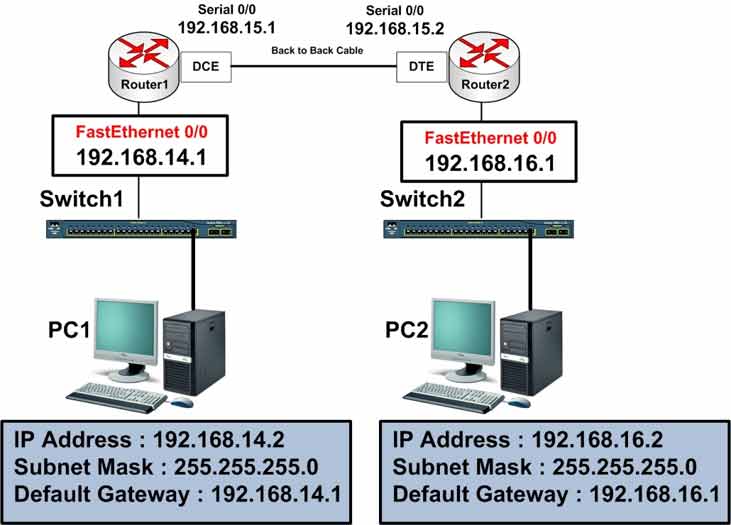
Configure the RIP dynamic routing protocol on two Cisco routers. Learn RIPv1 vs RIPv2, hop count metric, and verify automatic route exchange with show ip route.
Lab Objective
- Configure the RIP routing protocol on Cisco routers
🛠️ Equipment Needed for This Lab
- 2 Cisco routers
- 2 Cisco 2960 switches
- 2 PCs
Router Interface Configuration
| Router | Interface | IP Address | Subnet Mask | Serial Type |
|---|---|---|---|---|
| Router 1 | FastEthernet 0/0 | 192.168.14.1 | 255.255.255.0 | — |
| Router 2 | FastEthernet 0/0 | 192.168.16.1 | 255.255.255.0 | — |
| Router 1 | Serial 0/0 | 192.168.15.1 | 255.255.255.0 | DCE |
| Router 2 | Serial 0/0 | 192.168.15.2 | 255.255.255.0 | DTE |
PC Configuration
| Computer | IP Address | Subnet Mask | Default Gateway |
|---|---|---|---|
| PC1 | 192.168.14.2 | 255.255.255.0 | 192.168.14.1 |
| PC2 | 192.168.16.2 | 255.255.255.0 | 192.168.16.1 |
Dynamic Routing vs. Static Routing
Earlier labs covered building routing tables with static routes. This lab configures routing tables using a dynamic routing protocol like RIP.
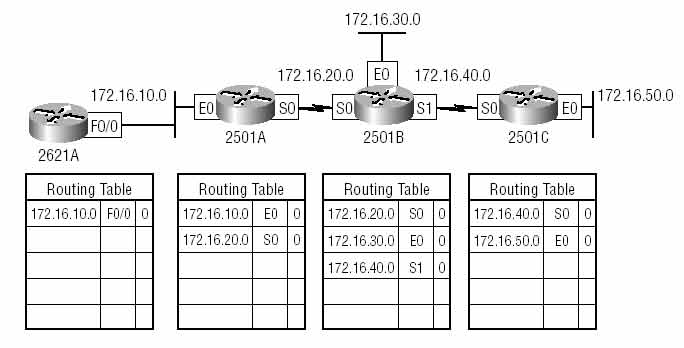
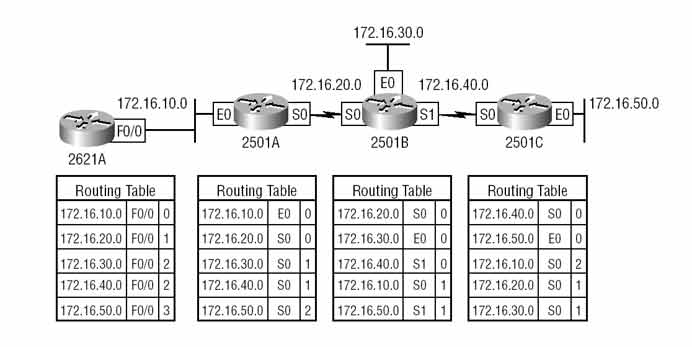
Dynamic routing protocols — RIP, IGRP, EIGRP, OSPF, and others — let routers update their routing tables automatically. When routing protocols are enabled on every router in an organization, routers exchange update messages with their neighbors. Each router sends updates to and receives updates from its neighbors. This automatically completes and populates the routing table.
If a route is added or removed, every router in the organization is updated automatically.
RIP Versions: RIPv1 vs. RIPv2
RIP has two versions, both based on the Distance Vector algorithm:
- RIP Version 1
- RIP Version 2
RIP Version 1
RIPv1 uses broadcast messages to update routing tables between routers. Every 30 seconds, it broadcasts the full routing table out active interfaces.
The metric is based on hop count, with a maximum of 15 hops.
RIPv1 is a Classful protocol. If multiple paths have the same hop count, load balancing occurs — up to 6 equal-metric paths.
Note: Classful and Classless protocols will be covered in future labs.
RIP Version 2
RIPv2 is also Distance Vector, but more advanced than RIPv1. It uses multicast instead of broadcast — though it can still broadcast if needed.
RIPv2 is a Classless protocol — it supports VLSM.
RIPv2 supports authentication, which lets routers verify each other before exchanging routing tables. Best path selection is still based on hop count.
Note: RIP authentication will be covered in a future lab.
RIPv1 vs. RIPv2 Comparison
| Feature | RIPv1 | RIPv2 |
|---|---|---|
| Update Method | Broadcast | Multicast (224.0.0.9) |
| Protocol Type | Classful | Classless |
| VLSM Support | ❌ No | ✅ Yes |
| Authentication | ❌ No | ✅ Yes |
| Subnet Mask in Updates | ❌ Not included | ✅ Included |
| Metric | Hop count | Hop count |
| Max Hop Count | 15 | 15 |
| Load Balancing | Up to 6 paths | Up to 6 paths |
Understanding Metric in RIP
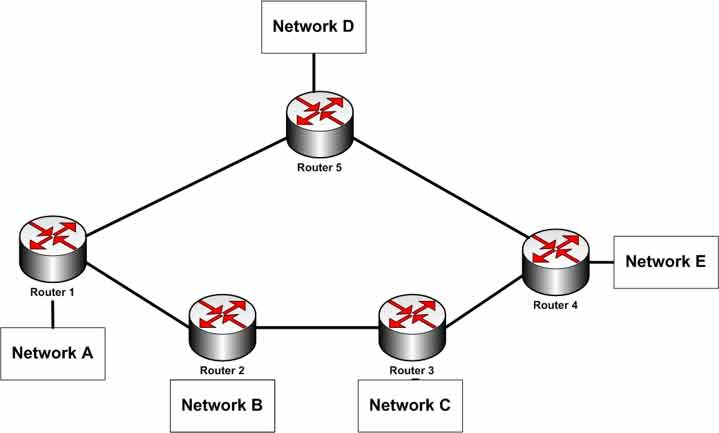
In an internetwork, multiple paths can reach the same network. A unit called Metric selects the best path. Each routing protocol calculates metric differently.
In RIP, the best path is the one with the fewest hops (routers) along the way.
Metric Example 1: Different Hop Counts
To reach Network E from Router1, there are two paths:
- Path 1: Router 5 → Router 4 → Network E (2 hops)
- Path 2: Router 2 → Router 3 → Router 4 → Network E (3 hops)
Path 1 has 2 hops (Metric = 2). Path 2 has 3 hops (Metric = 3). RIP picks Path 1 as the best route.
Metric Example 2: Equal Hop Counts
When two paths have the same metric, RIP performs load balancing — packets travel equally across both paths.
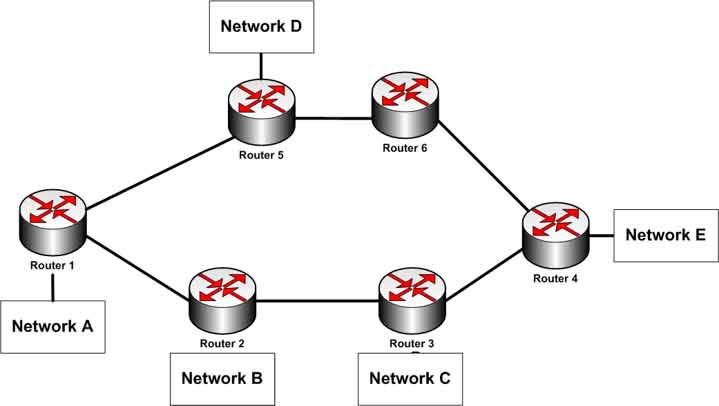
Diagram: Two equal-metric paths from Router1 to Network E — appears here.
- Path 1: Router 5 → Router 6 → Router 4 → Network E (3 hops)
- Path 2: Router 2 → Router 3 → Router 4 → Network E (3 hops)
Both paths have 3 hops (Metric = 3). RIP load balances across both. Load balancing can use up to 6 equal-metric paths.
Why load balancing matters: Distributing traffic across multiple paths improves network performance compared to using a single path.
The RIP Metric Problem
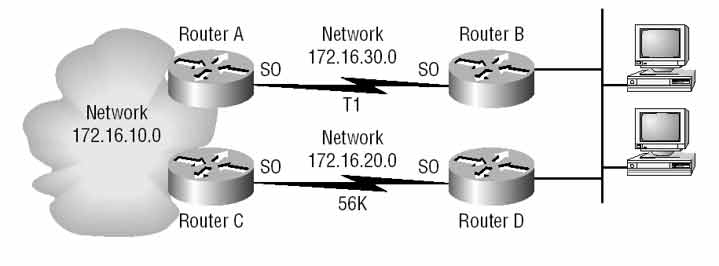
One weakness of RIP is how it calculates metric. Since RIP only counts hops, it can’t tell the difference between fast and slow links. A T1 link (1.544 Mbps) and a 56 Kbps link look identical to RIP if they have the same hop count.
RIP will load balance across both — splitting traffic equally. But since one link is much slower, performance drops badly on the 56 Kbps path.
Step 1: Configure Router1 and Router2 and Set IP Addresses on Router Interfaces
Configure FastEthernet 0/0 on Router1:
Router1#config t
Router1(config)#interface fastEthernet 0/0
Router1(config-if)#ip address 192.168.14.1 255.255.255.0
Router1(config-if)#no shutdown
Configure Serial 0/0 on Router1:
Router1(config)#interface serial 0/0
Router1(config-if)#ip address 192.168.15.1 255.255.255.0
Router1(config-if)#clock rate 64000
Router1(config-if)#no shutdown
Configure FastEthernet 0/0 on Router2:
Router2#config t
Router2(config)#interface fastEthernet 0/0
Router2(config-if)#ip address 192.168.16.1 255.255.255.0
Router2(config-if)#no shutdown
Configure Serial 0/0 on Router2:
Router2(config)#interface serial 0/0
Router2(config-if)#ip address 192.168.15.2 255.255.255.0
Router2(config-if)#no shutdown
Step 2: View the Routing Tables on Router1 and Router2
Run show ip route on Router1:
Router1#show ip route

Gateway of last resort is not set
C 192.168.14.0/24 is directly connected, FastEthernet 0/0
C 192.168.15.0/24 is directly connected, Serial 0/0
Run show ip route on Router2:
Router2#show ip route

Gateway of last resort is not set
C 192.168.15.0/24 is directly connected, Serial 0/0
C 192.168.16.0/24 is directly connected, FastEthernet 0/0
Step 3: Configure the RIP Routing Protocol on Router1
To configure RIP, enter Global Configuration Mode and use the router rip command. Then add network statements for all directly connected networks:
Router1#config t
Router1(config)#router rip
Router1(config-router)#network 192.168.14.0
Router1(config-router)#network 192.168.15.0
Router1(config-router)#exit
Router1(config)#exit
| Command | Description |
|---|---|
| Router1(config)#router rip | Enables RIP on the router. |
| Router1(config-router)#network 192.168.14.0 | Advertises the 192.168.14.0 network (directly connected) to RIP neighbors. |
| Router1(config-router)#network 192.168.15.0 | Advertises the 192.168.15.0 network (directly connected) to RIP neighbors. |
Save the running-config to NVRAM:
Router1#copy running-config startup-config
Step 4: Configure the RIP Routing Protocol on Router2
Configure RIP on Router2 with its directly connected networks:
Router2#config t
Router2(config)#router rip
Router2(config-router)#network 192.168.16.0
Router2(config-router)#network 192.168.15.0
Router2(config-router)#exit
Router2(config)#exit
| Command | Description |
|---|---|
| Router2(config)#router rip | Enables RIP on the router. |
| Router2(config-router)#network 192.168.16.0 | Advertises the 192.168.16.0 network to RIP neighbors. |
| Router2(config-router)#network 192.168.15.0 | Advertises the 192.168.15.0 network to RIP neighbors. |
Save the running-config to NVRAM:
Router2#copy running-config startup-config
Step 5: Configure the Workstation PCs
PC1 and PC2 must have correct IP address settings. They also need a Default Gateway to reach computers on other networks. The default gateway is the IP address of the closest router interface.
| Setting | PC1 | PC2 |
|---|---|---|
| IP Address | 192.168.14.2 | 192.168.16.2 |
| Subnet Mask | 255.255.255.0 | 255.255.255.0 |
| Default Gateway | 192.168.14.1 | 192.168.16.1 |
Step 6: View the Routing Tables on Router1 and Router2 (After RIP)
Run show ip route on Router1:
Router1#show ip route

Gateway of last resort is not set
C    192.168.14.0/24 is directly connected, FastEthernet0/0
C    192.168.15.0/24 is directly connected, Serial0/0
R    192.168.16.0/24 [120/1] via 192.168.15.2, 00:00:08, Serial0/0
Run show ip route on Router2:
Router2#show ip route

Gateway of last resort is not set
R    192.168.14.0/24 [120/1] via 192.168.15.1, 00:00:04, Serial0/0
C    192.168.15.0/24 is directly connected, Serial0/0
C    192.168.16.0/24 is directly connected, FastEthernet0/0
❓ Why Do Some Routes Show R?
R means the route was learned through RIP. The [120/1] shows Administrative Distance 120 and metric (hop count) 1.
Router1 now knows about 192.168.16.0/24 — a network it didn’t know before RIP was configured. Router2 now knows about 192.168.14.0/24.
Step 7: Test Connectivity Between PCs with Ping
From PC1, ping PC2:
PC1>ping 192.168.16.2

Pinging 192.168.16.2 with 32 bytes of data:
Reply from 192.168.16.2: bytes=32 time=20ms TTL=254
Reply from 192.168.16.2: bytes=32 time=20ms TTL=254
Reply from 192.168.16.2: bytes=32 time=20ms TTL=254
Reply from 192.168.16.2: bytes=32 time=20ms TTL=254
From PC2, ping PC1:
PC2>ping 192.168.14.2

Pinging 192.168.14.2 with 32 bytes of data:
Reply from 192.168.14.2: bytes=32 time=20ms TTL=254
Reply from 192.168.14.2: bytes=32 time=20ms TTL=254
Reply from 192.168.14.2: bytes=32 time=20ms TTL=254
Reply from 192.168.14.2: bytes=32 time=20ms TTL=254
Step 8: RIP Configuration Commands Reference
These commands are entered in Router Configuration Mode:
| Command | Description |
|---|---|
| Router(config)#router rip | Enables RIP on the router. |
| Router(config-router)#network 192.168.16.0 | Advertises the 192.168.16.0 network to RIP neighbors. |
| Router(config-router)#version 2 | Sets RIP to version 2. |
| Router(config-router)#version 1 | Sets RIP to version 1. |
| Router(config-router)#passive-interface fastEthernet 0/0 | Stops RIP updates from being sent out of FastEthernet 0/0. Use this on interfaces that don’t connect to another RIP router. |
| Router(config-router)#neighbor 192.168.15.1 | Manually identifies a neighbor router for routing table exchange. |
| Router(config-router)#timers basic 30 90 180 270 | Sets RIP timers: Update (30s), Invalid (90s), Hold-down (180s), Flush (270s). |
| Router(config-router)#maximum-paths 6 | Sets the maximum number of equal-cost paths for load balancing. Default is 4, maximum is 6. |
| Router(config-router)#ip split-horizon | Enables split-horizon for RIP. |
These commands are entered in Interface Configuration Mode:
| Command | Description |
|---|---|
| Router(config)#interface fastEthernet 0/0 | Enters Interface Configuration Mode for FastEthernet 0/0. |
| Router(config-if)#ip rip send version 2 | Sends only RIPv2 updates out of the interface. |
| Router(config-if)#ip rip send version 1 2 | Sends both RIPv1 and RIPv2 updates out of the interface. |
| Router(config-if)#ip rip receive version 1 | Receives only RIPv1 updates on the interface. |
| Router(config-if)#ip rip receive version 2 | Receives only RIPv2 updates on the interface. |
| Router(config-if)#ip rip receive version 1 2 | Receives both RIPv1 and RIPv2 updates on the interface. |
Router1 Final Configuration
hostname Router1
!
!
!
interface fastEthernet 0/0
 ip address 192.168.14.1 255.255.255.0
 no shutdown
!
!
!
interface Serial 0/0
 ip address 192.168.15.1 255.255.255.0
 clock rate 64000
 no shutdown
!
!
!
router rip
 network 192.168.14.0
 network 192.168.15.0
!
!
End
Router2 Final Configuration
hostname Router2
!
!
!
interface fastEthernet 0/0
 ip address 192.168.16.1 255.255.255.0
 no shutdown
!
!
!
interface Serial 0/0
 ip address 192.168.15.2 255.255.255.0
 no shutdown
!
!
!
router rip
 network 192.168.16.0
 network 192.168.15.0
!
!
End
Routing Table Codes
| Code | Meaning | How It’s Added |
|---|---|---|
| C | Connected | Automatically — directly connected |
| R | RIP | Dynamic — learned through RIP |
| S | Static | Manually — ip route |
| S* | Static Default | Manually — ip route 0.0.0.0 |
RIP Timers Explained
| Timer | Default | Purpose |
|---|---|---|
| Update | 30 seconds | How often the full routing table is sent |
| Invalid | 90 seconds | Time after which a route is marked invalid |
| Hold-down | 180 seconds | Time a route stays in hold-down state |
| Flush | 270 seconds | Time before a route is removed from the table |
✅ Key Takeaways
- RIP is a Distance Vector dynamic routing protocol.
- Configure RIP with
router ripandnetworkstatements. - Only add directly connected networks to RIP.
- RIP uses hop count as its metric — max 15 hops.
- RIPv1 uses broadcast and is Classful. RIPv2 uses multicast and is Classless.
- Routes learned through RIP show as
Rin the routing table. - Equal-metric paths trigger load balancing (up to 6 paths).
- RIP can’t tell fast links from slow links — a metric weakness.
- RIP timers: Update 30s, Invalid 90s, Hold-down 180s, Flush 270s.
