


RIP Troubleshooting with debug ip rip: Real-Time Protocol Analysis
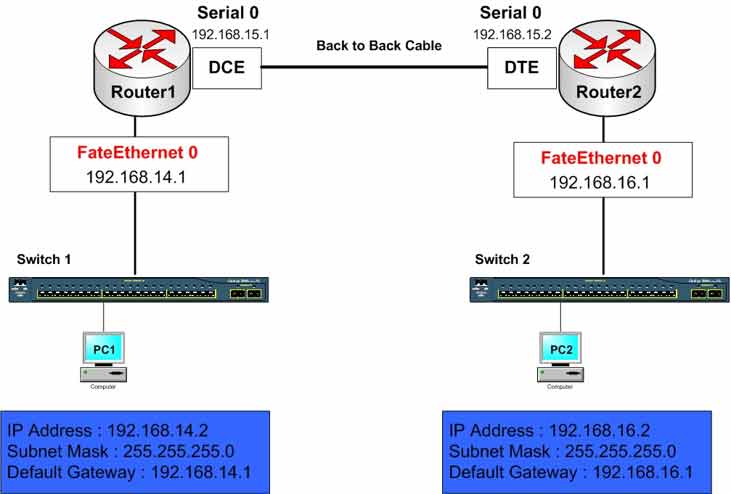
Lab Objective
- Configure routers with IP addresses
- Configure the RIP dynamic routing protocol
- Test RIP activity with the
debug ip ripcommand
🛠️ Equipment Needed for This Lab
- 2 Cisco routers
- 2 Cisco 2960 switches
- 2 PCs
After configuring RIP, you may encounter various issues. You need to understand RIP troubleshooting principles, work with troubleshooting commands, and know how to use the debug command.
Router Interface Configuration
| Router | Interface | IP Address | Subnet Mask | Serial Type |
|---|---|---|---|---|
| Router 1 | FastEthernet 0/0 | 192.168.14.1 | 255.255.255.0 | — |
| Router 2 | FastEthernet 0/0 | 192.168.16.1 | 255.255.255.0 | — |
| Router 1 | Serial 0/0 | 192.168.15.1 | 255.255.255.0 | DCE |
| Router 2 | Serial 0/0 | 192.168.15.2 | 255.255.255.0 | DTE |
PC Configuration
| Computer | IP Address | Subnet Mask | Default Gateway |
|---|---|---|---|
| PC1 | 192.168.14.2 | 255.255.255.0 | 192.168.14.1 |
| PC2 | 192.168.16.2 | 255.255.255.0 | 192.168.16.1 |
Step 1: Configure Router1 and Router2 and Set IP Addresses on Router Interfaces
Configure FastEthernet 0/0 on Router1:
Router1#config t
Router1(config)#interface fastEthernet 0/0
Router1(config-if)#ip address 192.168.14.1 255.255.255.0
Router1(config-if)#no shutdown
Configure Serial 0/0 on Router1:
Router1(config)#interface serial 0/0
Router1(config-if)#ip address 192.168.15.1 255.255.255.0
Router1(config-if)#clock rate 64000
Router1(config-if)#no shutdown
Configure FastEthernet 0/0 on Router2:
Router2#config t
Router2(config)#interface fastEthernet 0/0
Router2(config-if)#ip address 192.168.16.1 255.255.255.0
Router2(config-if)#no shutdown
Configure Serial 0/0 on Router2:
Router2(config)#interface serial 0/0
Router2(config-if)#ip address 192.168.15.2 255.255.255.0
Router2(config-if)#no shutdown
Step 2: Configure the RIP Routing Protocol on Router1 and Router2
Configure RIP on Router1:
Router1#config t
Router1(config)#router rip
Router1(config-router)#network 192.168.14.0
Router1(config-router)#network 192.168.15.0
Router1(config-router)#exit
Router1(config)#exit
Configure RIP on Router2:
Router2#config t
Router2(config)#router rip
Router2(config-router)#network 192.168.15.0
Router2(config-router)#network 192.168.16.0
Router2(config-router)#exit
Router2(config)#exit
Save the running-config to NVRAM:
Router2#copy running-config startup-config
Step 3: Use the debug ip rip Command
The debug command displays behind-the-scenes activity you normally don’t see. Be careful — debugging dramatically increases the router’s CPU load. Use it only for short troubleshooting windows, then disable all debug processes when done.
To see IP protocol activity in detail, run the debug command with its parameters on Router1:
Router1#debug ip rip

RIP protocol debugging is on
Router#RIP: sending v1 update to 255.255.255.255 via FastEthernet0/0 (192.168.14.1)
RIP: build update entries
      network 192.168.15.0 metric 1
      network 192.168.16.0 metric 2
RIP: sending v1 update to 255.255.255.255 via Serial0/0 (192.168.15.1)
RIP: build update entries
      network 192.168.14.0 metric 1
RIP: received v1 update from 192.168.15.2 on Serial0/0
      192.168.16.0 in 1 hops
RIP: sending v1 update to 255.255.255.255 via FastEthernet0/0 (192.168.14.1)
RIP: build update entries
      network 192.168.15.0 metric 1
      network 192.168.16.0 metric 2
RIP: sending v1 update to 255.255.255.255 via Serial0/1/0 (192.168.15.1)
RIP: build update entries
      network 192.168.14.0 metric 1
After running debug ip rip, study the output carefully. You’ll see all the information RIP sends and receives:
- RIP: sending v1 update — outbound update announcements
- RIP: build update entries — the networks being advertised and their metric
- RIP: received v1 update — inbound updates from neighbors
- network … metric … — the specific networks and hop counts
The debug ip rip command shows the routing updates exchanged between Router1 and Router2 — invaluable for troubleshooting RIP.
Important: After troubleshooting, disable debug immediately. The debug command creates a heavy CPU load. Use no debug all to disable all debug processes:
Router1#no debug all
Debug ip rip Output Explained
| Line in Output | Meaning |
|---|---|
RIP: sending v1 update to 255.255.255.255 |
Router is sending a RIPv1 broadcast update |
via FastEthernet0/0 (192.168.14.1) |
Outbound interface and source IP address |
RIP: build update entries |
Router is constructing the list of networks to advertise |
network 192.168.15.0 metric 1 |
Advertising network with metric (hop count) = 1 |
RIP: received v1 update from 192.168.15.2 |
Received a RIP update from neighbor at 192.168.15.2 |
192.168.16.0 in 1 hops |
Learned network 192.168.16.0 with 1-hop distance |
Debug Command Reference
| Command | Description |
|---|---|
| Router1#debug ip rip | Enables RIP debug output — shows all RIP update activity. |
| Router1#no debug all | Disables all debug processes — recommended after troubleshooting. |
| Router1#undebug all | Same as no debug all — disables all debug processes. |
| Router1#show debugging | Shows which debug processes are currently enabled. |
| Router1#terminal monitor | Displays debug output on a Telnet or SSH session (not just console). |
RIP Show Commands for Troubleshooting
| Command | Description |
|---|---|
| Router1#show ip route | Displays the routing table with R-coded RIP routes. |
| Router1#show ip protocols | Displays active routing protocols and their configuration. |
| Router1#show ip rip database | Displays the RIP routing database. |
| Router1#show running-config | section router rip | Displays only the RIP configuration. |
| Router1#show ip interface brief | Verifies interface status and IP addresses. |
RIP Troubleshooting Flow
| Step | Action | Command |
|---|---|---|
| 1 | Verify interface status | show ip interface brief |
| 2 | Verify IP addressing | show running-config |
| 3 | Verify RIP configuration | show ip protocols |
| 4 | Check routing table | show ip route |
| 5 | Test real-time updates | debug ip rip |
| 6 | Disable debugging | no debug all |
Router1 Final Configuration
hostname Router1
!
!
!
interface fastEthernet 0/0
 ip address 192.168.14.1 255.255.255.0
 no shutdown
!
!
!
interface Serial 0/0
 ip address 192.168.15.1 255.255.255.0
 clock rate 64000
 no shutdown
!
!
!
router rip
 network 192.168.14.0
 network 192.168.15.0
!
!
End
Router2 Final Configuration
hostname Router2
!
!
!
interface fastEthernet 0/0
 ip address 192.168.16.1 255.255.255.0
 no shutdown
!
!
!
interface Serial 0/0
 ip address 192.168.15.2 255.255.255.0
 no shutdown
!
!
!
router rip
 network 192.168.15.0
 network 192.168.16.0
!
!
End
Debug Best Practices
- Use
debugonly during short troubleshooting windows. - Debug output goes to the console by default — use
terminal monitorfor Telnet/SSH sessions. - Always disable debug when done with
no debug all. - On production routers, use
logging bufferedinstead of console debug output. - Never leave debug running unattended — it can crash a busy router.
- Combine debug with
showcommands for full visibility.
✅ Key Takeaways
debug ip ripshows real-time RIP update activity.- Debug output reveals both sent and received updates.
- Debug puts a heavy CPU load on the router — use it briefly.
- Always disable debugging with
no debug allwhen done. - Debug output goes to the console by default; use
terminal monitorfor remote sessions. - Combine debug with
show ip protocolsandshow ip route. - Use
show debuggingto see what’s currently enabled. - RIP troubleshooting flow: interfaces → IP addressing → RIP config → routing table → debug.
