


Routing Across 4 Networks with a Router: Connecting 4 Subnets
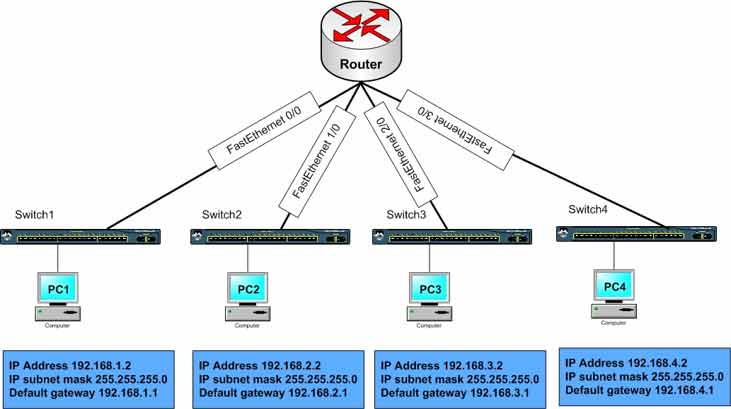
Lab Objective
- Route traffic across 4 subnets so every PC in each subnet can reach PCs in all other subnets
- Test connectivity between PCs in different subnets
🛠️ Equipment Needed for This Lab
- 1 Cisco router with 4 FastEthernet interfaces
- 4 Cisco 2960 switches
- 4 PCs — one per subnet
PC Configuration
| Computer | IP Address | Subnet Mask | Default Gateway | Subnet |
|---|---|---|---|---|
| PC1 | 192.168.1.2 | 255.255.255.0 | 192.168.1.1 | Subnet 1 |
| PC2 | 192.168.2.2 | 255.255.255.0 | 192.168.2.1 | Subnet 2 |
| PC3 | 192.168.3.2 | 255.255.255.0 | 192.168.3.1 | Subnet 3 |
| PC4 | 192.168.4.2 | 255.255.255.0 | 192.168.4.1 | Subnet 4 |
Router Interface Configuration
| Router Interface | IP Address | Connected Subnet |
|---|---|---|
| FastEthernet 0/0 | 192.168.1.1 | 192.168.1.0/24 |
| FastEthernet 1/0 | 192.168.2.1 | 192.168.2.0/24 |
| FastEthernet 2/0 | 192.168.3.1 | 192.168.3.0/24 |
| FastEthernet 3/0 | 192.168.4.1 | 192.168.4.0/24 |
Note: No configuration is needed on the switches in this lab.
❓ Questions to Consider
- What type of cable connects the four switch ports to the router ports?
- What type of cable connects the switch ports to the PCs in each subnet?
What Is Routing?
Routing is the process of forwarding data packets from a source to a destination across an internetwork — an environment with multiple networks.
If the routing foundation isn’t implemented correctly in an organization, different networks can’t communicate with each other.
Notice the IP addresses of the four subnets in this lab — they’re four independent, separate networks. To communicate and route packets between them, they need a router.
Each network is its own broadcast domain. If a broadcast is sent in Network 1, it won’t pass through the router’s interfaces to reach Network 2, Network 3, or Network 4.
In this lab’s topology, four networks with different ranges connect to four switches — Switch1, Switch2, Switch3, and Switch4.
❓ Think About It
- Why is a router used to connect these four networks with different Network IDs?
- What router configurations are needed to route packets between 192.168.1.0/24, 192.168.2.0/24, 192.168.3.0/24, and 192.168.4.0/24?
- What IP addresses should be assigned to FastEthernet 0/0, 1/0, 2/0, and 3/0?
- Do the client PCs need any special configuration?
Configure the router as shown below to answer all these questions. First, configure the router interfaces with the correct IP addresses so the router can connect to the different networks and forward packets between them.
Step 1: Configure the Router and Set IP Addresses on Router Interfaces
Configure FastEthernet 0/0 and set its IP address:
Router#config t
Router(config)#interface fastEthernet 0/0
Router(config-if)#ip address 192.168.1.1 255.255.255.0
Router(config-if)#no shutdown
Configure FastEthernet 1/0 and set its IP address:
Router#config t
Router(config)#interface fastEthernet 1/0
Router(config-if)#ip address 192.168.2.1 255.255.255.0
Router(config-if)#no shutdown
Configure FastEthernet 2/0 and set its IP address:
Router#config t
Router(config)#interface fastEthernet 2/0
Router(config-if)#ip address 192.168.3.1 255.255.255.0
Router(config-if)#no shutdown
Configure FastEthernet 3/0 and set its IP address:
Router#config t
Router(config)#interface fastEthernet 3/0
Router(config-if)#ip address 192.168.4.1 255.255.255.0
Router(config-if)#no shutdown
Step 2: Display the Router’s Routing Table
Use the following command to view a router’s routing table. Routers make all routing decisions based on the information in the routing table:
Router#show ip route

Gateway of last resort is not set
C   192.168.1.0 /24  is directly connected  Ethernet 0/0
C   192.168.2.0 /24  is directly connected  Ethernet 0/1
C   192.168.3.0 /24  is directly connected  Ethernet 0/2
C   192.168.4.0 /24  is directly connected  Ethernet 0/3
Review the output carefully — you’ll see which interface each network connects to. The routing table shows four networks, all directly connected to the router.
The letter C in the show ip route output means the network is directly connected to the router.
Test Connectivity Between Subnets
Test connectivity by pinging from PC1 in Subnet 1 to the PCs in Subnet 2, Subnet 3, and Subnet 4:
PC1>ping 192.168.2.2

Pinging 192.168.2.2 with 32 bytes of data:
Reply from 192.168.2.2: bytes=32 time=20ms TTL=254
Reply from 192.168.2.2: bytes=32 time=20ms TTL=254
Reply from 192.168.2.2: bytes=32 time=20ms TTL=254
Reply from 192.168.2.2: bytes=32 time=20ms TTL=254
PC1>ping 192.168.3.2

Pinging 192.168.3.2 with 32 bytes of data:
Reply from 192.168.3.2: bytes=32 time=20ms TTL=254
Reply from 192.168.3.2: bytes=32 time=20ms TTL=254
Reply from 192.168.3.2: bytes=32 time=20ms TTL=254
Reply from 192.168.3.2: bytes=32 time=20ms TTL=254
PC1>ping 192.168.4.2

Pinging 192.168.4.2 with 32 bytes of data:
Reply from 192.168.4.2: bytes=32 time=20ms TTL=254
Reply from 192.168.4.2: bytes=32 time=20ms TTL=254
Reply from 192.168.4.2: bytes=32 time=20ms TTL=254
Reply from 192.168.4.2: bytes=32 time=20ms TTL=254
The connectivity test between PCs in all four subnets succeeds.
Key Insight from This Lab
You don’t need to configure any routing settings to connect networks directly attached to a router. Networks directly connected to the router are automatically added to the routing table as connected routes.
As long as the router interfaces are configured correctly and PCs in each network have the correct IP address and default gateway, they can communicate with each other.
Router Final Configuration
hostname Router
!
!
!
interface fastEthernet0/0
 ip address 192.168.1.1 255.255.255.0
 no shutdown
!
!
!
interface fastEthernet1/0
 ip address 192.168.2.1 255.255.255.0
 no shutdown
!
!
!
interface fastEthernet2/0
 ip address 192.168.3.1 255.255.255.0
 no shutdown
!
!
!
interface fastEthernet3/0
 ip address 192.168.4.1 255.255.255.0
 no shutdown
!
!
End
Full Command Reference
| Command | Description |
|---|---|
| Router#config t | Moves from Privilege Mode to Global Configuration Mode. |
| Router(config)#interface fastEthernet 0/0 | Enters Interface Configuration Mode for FastEthernet 0/0. |
| Router(config-if)#ip address 192.168.1.1 255.255.255.0 | Assigns IP address and subnet mask to the interface. |
| Router(config-if)#no shutdown | Enables the interface (interfaces are shut down by default). |
| Router#show ip route | Displays the router’s routing table, including connected routes. |
Routing Table Codes
| Code | Meaning | Description |
|---|---|---|
| C | Connected | Network is directly connected to the router |
| L | Local | Local interface IP address (mask /32) |
| S | Static | Manually configured static route |
| S* | Static Default | Default static route |
| R | RIP | Route learned through RIP |
| D | EIGRP | Route learned through EIGRP |
| O | OSPF | Route learned through OSPF |
Cable Types Used in This Lab
| Connection | Cable Type |
|---|---|
| Switch to Router | Straight-through (UTP Cat 5/6) |
| Switch to PC | Straight-through (UTP Cat 5/6) |
✅ Key Takeaways
- Routing forwards packets between different networks.
- Each subnet is its own broadcast domain — broadcasts don’t cross router interfaces.
- Configure router interfaces with the default gateway IP of each subnet.
- Enable interfaces with
no shutdown— they’re off by default. - Directly connected networks are automatically added to the routing table as
Croutes. - No routing protocol configuration is needed for directly connected networks.
- PCs need the correct IP address, subnet mask, and default gateway to communicate.
- Use
show ip routeto verify connected routes. - Use straight-through cables for switch-to-router and switch-to-PC connections.
