


Backup Router Configuration Files: Edit, Copy & Restore with Notepad
Lab Objective
- Edit router configurations using text editors like Notepad
- Copy configuration from one router to another using Notepad
- Back up the entire router configuration as text using Notepad
🛠️ Equipment Needed for This Lab
- 2 Cisco routers
- 2 Cisco switches
- 2 PCs
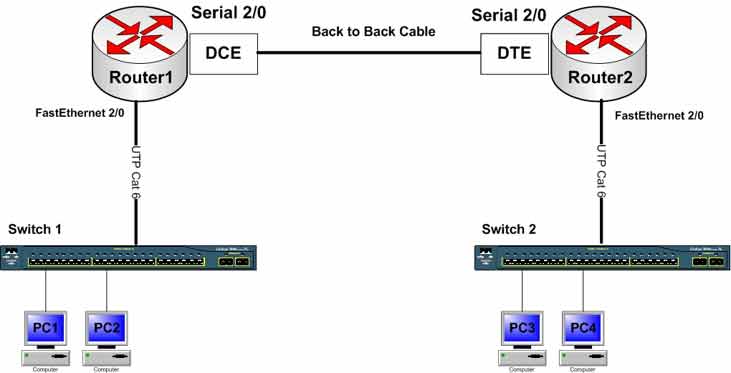
Network Topology
Switch Connections
| Device | Switch 1 Port | Switch 2 Port |
|---|---|---|
| PC 1 / PC 3 | FastEthernet 0/1 | FastEthernet 0/1 |
| PC 2 / PC 4 | FastEthernet 0/2 | FastEthernet 0/2 |
| Router1 / Router2 | FastEthernet 0/3 | FastEthernet 0/3 |
Router-to-Switch Connections
| Router | Switch | Router Port | Switch Port |
|---|---|---|---|
| Router1 | Switch 1 | FastEthernet 0/0 | FastEthernet 0/3 |
| Router2 | Switch 2 | FastEthernet 0/0 | FastEthernet 0/3 |
Router Interface Configuration
| Router | Interface | IP Address | Subnet Mask | Serial Type |
|---|---|---|---|---|
| Router 1 | FastEthernet 0/0 | 192.168.1.100 | 255.255.255.0 | — |
| Router 2 | FastEthernet 0/0 | 192.168.2.100 | 255.255.255.0 | — |
| Router1 | Serial 2/0 | 192.168.0.1 | 255.255.255.0 | DCE |
| Router 2 | Serial 2/0 | 192.168.0.2 | 255.255.255.0 | DTE |
PC Configuration
| Computer | IP Address | Subnet Mask | Default Gateway |
|---|---|---|---|
| PC1 | 192.168.1.1 | 255.255.255.0 | 192.168.1.100 |
| PC2 | 192.168.1.2 | 255.255.255.0 | 192.168.1.100 |
| PC3 | 192.168.2.1 | 255.255.255.0 | 192.168.2.100 |
| PC4 | 192.168.2.2 | 255.255.255.0 | 192.168.2.100 |
Step 1: Connect to the Router
Connect to the router through PuTTY and enter User Mode. What do you see at the command prompt?
If you see the prompt below, you’ve successfully entered User Mode. If not, check the console cable connection between the router and PC.
Router>
Step 2: Configure Hostname and Password on Router1
After connecting to Router1, run these commands:
Router#config t
Router(config)#hostname Router1
Router1(config)#
The router hostname changes from Router to Router1. Now set the Privilege Mode password:
Router1(config)#enable secret CCNA
Step 2b: Save the Configuration to NVRAM on Router1
To save the router configuration permanently, copy the running-config from RAM to the startup-config in NVRAM:
Router1#copy running-config startup-config
Step 3: Save Router Configuration to a .txt File
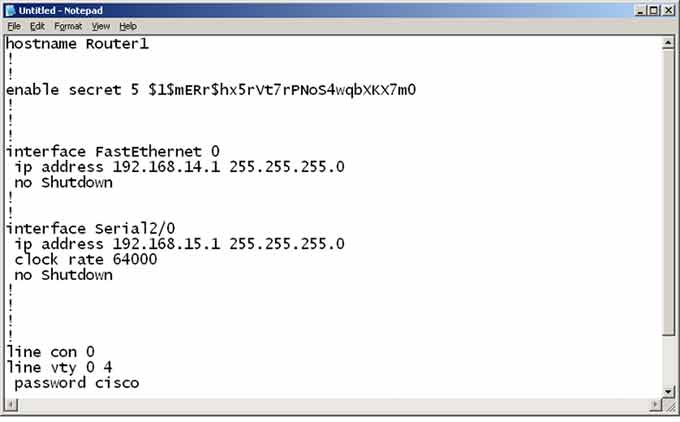
Use show running-config to display the entire active configuration in RAM. Select all the output, copy it, and paste it into a text editor like Notepad.
Router1#show running-config
Copy all the output from the command above into a text editor like Notepad. You can save these configurations in a text file — as shown in the image below.
Step 4: Restore Router Configuration Using the Saved Config.txt File
Now select all the content in the text file you created in the previous step and paste it into Global Configuration Mode on the router.
Router1#enable
Router1#config t
Router1(config)#
In Global Configuration Mode, at the Router1(config)# prompt, right-click with your mouse and select Paste.
Key point: If all data in NVRAM is lost, you can restore the router configuration using the text file you created.
Step 5: Erase NVRAM and Restore Configuration from the Text File
To erase the configuration data in NVRAM and wipe the startup-config file, use the following command:
Router1# erase startup-config
When you run this command, the router warns you that all configurations will be deleted. Pay attention to the warning — if you confirm, all data in NVRAM is wiped.
Erasing the nvram filesystem will remove all configuration files! Continue? [confirm]
Caution: The erase startup-config command wipes all configuration data from NVRAM. Confirm only when you intend to wipe the configuration.
After erasing all router configurations, repeat Step 4 of this lab and run the following command. You’ll see the NVRAM data restored from the text file you created in Step 3:
Router1# copy running-config startup-config
Backup Methods Compared
| Method | How It Works | Best For |
|---|---|---|
| Text File Backup | Copy show running-config output into Notepad | Quick manual backup, editing offline |
| TFTP Backup | Copy running-config to a TFTP server | Automated backups (covered in Lab 22) |
| NVRAM Backup | copy running-config startup-config | Local persistent storage |
| USB Backup | Copy config to USB drive | Physical portability |
Full Command Reference
| Command | Description |
|---|---|
| Router#config t | Moves from Privilege Mode to Global Configuration Mode. |
| Router(config)#hostname Router1 | Changes the router hostname to Router1. |
| Router1(config)#enable secret CCNA | Sets CCNA as the encrypted Privilege Mode password. |
| Router1#copy running-config startup-config | Saves the running-config to NVRAM (startup-config). |
| Router1#show running-config | Displays the active configuration in RAM. |
| Router1#erase startup-config | Erases the startup-config file from NVRAM. |
✅ Key Takeaways
show running-configdisplays the active configuration you can copy into a text file.- Paste the saved config into Global Configuration Mode to restore it.
copy running-config startup-configsaves the config to NVRAM.erase startup-configwipes all configurations from NVRAM.- A text file backup lets you edit the config offline before applying it.
- Text backups are a last line of defense when NVRAM is wiped.
- Store backup files in a safe location — they contain sensitive data like passwords.
