


Banner Message Configuration on a Cisco Router: MOTD, Login & Exec
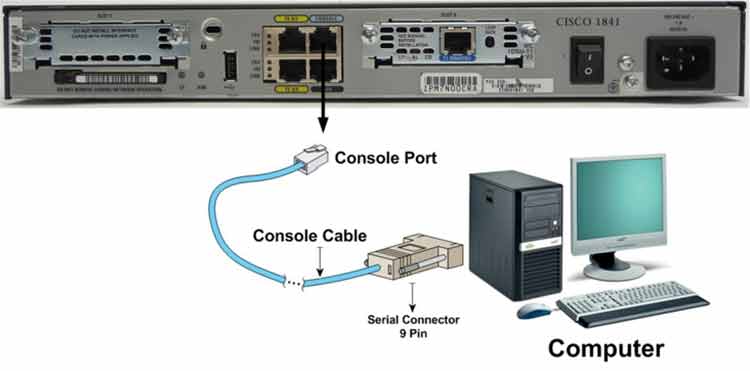
Lab Objective
- Configure Banner MOTD on the router
- Configure Banner Login
- Configure Banner Exec
🛠️ Equipment Needed for This Lab
- 1 Cisco router
- 1 PC with PuTTY installed
- Console cable (rollover cable)
Understanding the Three Banner Types
Step 1: Connect to the Router
Connect to the router through PuTTY and enter User Mode. What do you see at the command prompt?
If you see the prompt below, you’ve successfully entered User Mode. If not, check the console cable connection between the router and PC.
Router>
Step 2: Configure Message-of-the-Day (MOTD) on the Router
To configure MOTD and set a message that displays to all users accessing the router through Console, Telnet, SSH, or AUX, put your message after the banner motd command inside # symbols:
Router1#config t
Router1(config)#banner motd # Router is now changing #
In this example, we set Router is now changing as the message. It displays to all users accessing the router through Console, Telnet, SSH, or AUX — before any other prompt.
Step 3: Configure Banner Login on the Router
To configure Banner Login and set a message that displays after the MOTD banner to all users accessing the router, put your message after the banner login command inside # symbols:
Router1#config t
Router1(config)#banner login #Unauthorized Access is Deny #
In this example, we set Unauthorized Access is Deny as the message. It displays to all users accessing the router through Console, Telnet, SSH, or AUX after the MOTD banner.
When entering User Mode, all users accessing the router through Console, Telnet, SSH, or AUX see the message we entered after banner login — after the MOTD message. This message can include warnings and advisories for anyone accessing the router.
Step 4: Configure Banner Exec on the Router
To configure Banner Exec and set a message that displays after the user has fully accessed the router through Console, Telnet, SSH, or AUX and entered their password, use Banner Exec for messages you want hidden from unauthorized users — only users with the router password can see them.
Put your message after the banner exec command inside # symbols:
Router1#config t
Router1(config)#banner exec #Admin is CertGet #
Syntax note: The banner exec command is also commonly written as banner exec — the shorthand banner exe may work on some IOS versions. The # symbol is the delimiter — you can use any character that doesn’t appear in your message.
Banner Display Order
| Order | Banner Type | When It Displays |
|---|---|---|
| 1st | MOTD | Before any other prompt — first thing users see |
| 2nd | Login | After MOTD, before login prompt |
| 3rd | Exec | After successful login — visible only to authenticated users |
Banner Message Examples
| Banner Type | Example Message | Purpose |
|---|---|---|
| MOTD | Router is now changing | Notify users of maintenance or changes |
| MOTD | Scheduled maintenance at 2:00 AM | Advance warning of downtime |
| Login | Unauthorized Access is Deny | Legal warning against unauthorized access |
| Login | Authorized Personnel Only | Restrict access to authorized users |
| Exec | Admin is CertGet | Show current admin on duty |
| Exec | Welcome, Network Operations Team | Greet authorized users after login |
Full Command Reference
| Command | Description |
|---|---|
| Router1#config t | Moves from Privilege Mode to Global Configuration Mode. |
| Router1(config)#banner motd # message # | Sets the Message-of-the-Day banner. Displays before any other prompt. |
| Router1(config)#banner login # message # | Sets the Login banner. Displays after MOTD and before login. |
| Router1(config)#banner exec # message # | Sets the Exec banner. Displays after successful login. |
Why Banners Matter
- Legal protection — a warning banner establishes that unauthorized access is prohibited.
- User awareness — notify users about maintenance windows and changes.
- Operational communication — display contact info or current admin on duty.
- Security — Exec banner messages remain hidden until authentication succeeds.
- Compliance — many regulations require warning banners on network devices.
✅ Key Takeaways
- Banner MOTD displays first — before any other prompt.
- Banner Login displays after MOTD and before login.
- Banner Exec displays after successful login and password entry.
- Use
#as the delimiter — or any character not in your message. - Banners apply to Console, Telnet, SSH, and AUX access methods.
- Use Exec banner for messages hidden from unauthorized users.
- Warning banners provide legal protection against unauthorized access.
