


Working with Cisco Routers in the CLI: Global Config & Interface Mode
Lab Objective
- Identify and work with Global Configuration Mode
- Identify and work with Interface Mode
- Set a hostname for the router
- Save router configuration permanently
- Use the erase command on the router
- Learn essential router configuration commands
🛠️ Equipment Needed for This Lab
- 1 Cisco router
- 1 PC with PuTTY installed
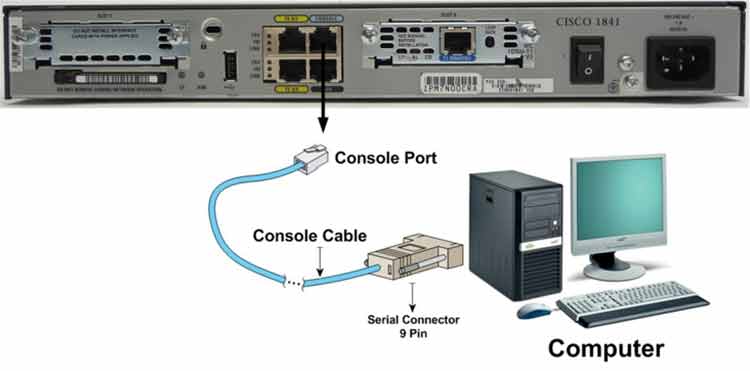
- Console cable (rollover cable)
Step 1: Identify and Work with Global Configuration Mode
Connect to the router through PuTTY and enter User Mode. What do you see at the command prompt?
If you see the prompt below, you’ve successfully entered User Mode. If not, check the console cable connection between the router and PC.
Router>
Next, move from User Mode to Privilege Mode, then into Global Configuration Mode using these commands:
Router>enable
Router#configure terminal
Router(config)#
You can also use the shorthand config t instead of configure terminal:
Router#config t
Router(config)#
Step 2: Identify and Work with Interface Mode
In Interface Mode, every command you run applies only to a single interface — not all interfaces on the router.
Use the command below to enter Interface Configuration Mode for the router’s Serial 0/0/0 interface:
Router(config)#interface serial 0/0/0
Router(config-if)#
Use the exit command to leave Interface Mode and return to Global Configuration Mode:
Router(config-if)#exit
Router(config)#
Tip: If you don’t know the interface names on your router, use the command below to display the name and status of all router interfaces:
Router#show interface stats

Interface FastEthernet0/0 is disabled
Interface FastEthernet0/1 is disabled
Interface Serial0/0/0  is disabled
As you can see in the output above, this router has three interfaces — FastEthernet0/0, FastEthernet0/1, and Serial0/0/0. All three interfaces are currently disabled.
Step 3: Change the Router Hostname
In this step, we’ll change the default Cisco router hostname (Router) to something custom. Use the command below to change the hostname — in this example, we’re changing it from Router to CertGet:
Router(config)#hostname CertGet
CertGet(config)#
Now use the exit command to move from Global Configuration Mode back to Privilege Mode:
CertGet(config)#exit
CertGet#
Step 4: Save Router Configuration Permanently
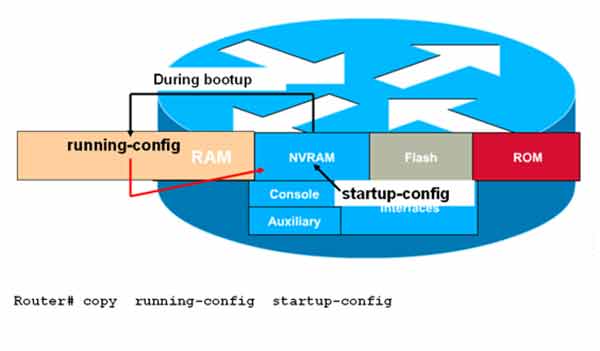
All router configurations go into RAM first, stored in a file called running-config. To save the configuration permanently, you must copy the contents of RAM to NVRAM, which stores the startup-config file.
Use the command below to copy the running-config to startup-config:
Router# copy running-config startup-config
Study the image below carefully — it shows this command in action.
Step 5: Use the erase Command to Delete Router Configuration Files
In Privilege Mode, you can use the erase command to delete the startup-config file from NVRAM. This wipes all router configurations, returning the router to a factory-default state — as if it were brand new with no configuration.
After running erase startup-config, the router prompts you to confirm the action. Press Enter to confirm. This command wipes all router settings and configurations from NVRAM.
Router>enable
Router#erase startup-config

[confirm]
Press Enter to confirm.
The response should be:
Erase of nvram: complete
Important: Using erase startup-config wipes all configuration data from NVRAM. Use this command with caution.
Command Reference
| Command | Description |
|---|---|
| Router>enable | Enters Privilege Mode. |
| Router#config t | Moves from Privilege Mode to Global Configuration Mode. |
| Router(config)# | Indicates the router is in Global Configuration Mode. |
| Router(config)#interface serial 0 | Enters Interface Configuration Mode for Serial 0. |
| Router(config-if)# | Indicates the router is in Interface Mode. |
| Router(config)#hostname GertGet | Changes the router hostname to CertGet. |
| Router#copy running-config startup-config | Copies the running-config from RAM to the startup-config in NVRAM. |
| Router#write | Same as copy running-config startup-config — saves the configuration. |
| Router#erase startup-config | Deletes the startup-config file from NVRAM. |
CLI Mode Prompts at a Glance
| Mode | Prompt | How to Enter |
|---|---|---|
| User Mode | Router> |
Default on login |
| Privilege Mode | Router# |
enable |
| Global Config Mode | Router(config)# |
config t |
| Interface Mode | Router(config-if)# |
interface [type] [number] |
✅ Key Takeaways
- Global Configuration Mode (
Router(config)#) is where most router settings are configured. - Interface Mode (
Router(config-if)#) applies commands to a specific interface only. - Use
hostname [name]to rename the router. copy running-config startup-configsaves the active config to NVRAM permanently.writeis a shortcut for the same save operation.erase startup-configwipes the saved configuration from NVRAM.- Use
show interface statsto list all router interfaces and their status. - Router interfaces are disabled by default — enable them with
no shutdown.
