


Interface Description Configuration: Labeling Router Interfaces
Add descriptions to Cisco router interfaces to identify connected devices and network segments. Learn the description command and verify it with show interface.
Lab Objective
- Configure descriptions on router interfaces
🛠️ Equipment Needed for This Lab
- 1 Cisco router
- 1 PC with HyperTerminal or PuTTY installed
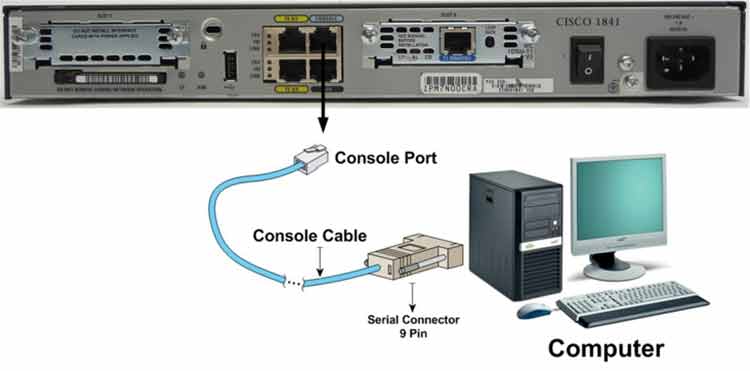
- Console cable (rollover cable)
Step 1: Connect to the Router
Connect to the router through PuTTY and enter User Mode. What do you see at the command prompt?
If you see the prompt below, you’ve successfully entered User Mode. If not, check the console cable connection between the router and PC.
Router>
Step 2: Configure Hostname and Password on the Router
After connecting to the router, run these commands:
Router#config t
Router(config)#hostname Router1
Router1(config)#
The router hostname changes from Router to Router1. Now set the Privilege Mode password:
Router1(config)#enable secret CCNA
Step 3: Set Descriptions for Router Interfaces
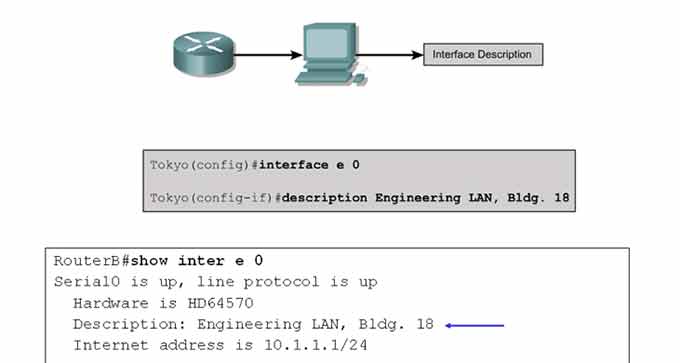
You can set descriptions on both Serial and Ethernet interfaces. Interface descriptions let you label each interface so you can quickly identify what device or network it connects to. Anyone with router access can read these descriptions — they make interface identification easy.
You can use up to 240 characters for a single interface description.
To set a description, enter Interface Configuration Mode for the target interface and use the description command:
Router1(config)#interface Serial 2/0
Router1(config-if)#description Connected to LAN
Router1(config-if)#exit
Router1(config)#exit
Router1#
| Command | Description |
|---|---|
| Router1(config)#interface Serial 2/0 | Enters Interface Configuration Mode for Serial 2/0. |
| Router1(config-if)#description Connected to LAN | Sets the description “Connected to LAN” on the interface. |
| Router1(config-if)#exit | Returns to Global Configuration Mode. |
Up to 240 characters: You can type up to 240 characters after the description command for any single interface.
Verify the Description
Run show interface Serial 2/0 to see the description you entered:
Router1#show interface Serial 2/0
Study the output carefully — you’ll see your description displayed next to the description field.
Why Interface Descriptions Matter
Interface descriptions are a professional habit that pays off during troubleshooting and audits. Here’s why:
- Fast identification — see what each interface connects to at a glance.
- Team communication — anyone with router access understands the topology.
- Documentation in-line — no need to cross-reference external diagrams.
- Change management — future engineers know what changed and why.
- Audit-ready — descriptions serve as evidence during network reviews.
Description Examples
| Interface | Description | Purpose |
|---|---|---|
| Serial 2/0 | Connected to LAN | Labels the WAN link |
| FastEthernet 0/0 | To Core Switch | Labels the uplink to the core |
| GigabitEthernet 2/0 | To Branch Office | Labels the WAN link to a remote site |
| Serial 3/0 | Backup Link to ISP-B | Labels a backup WAN link |
| FastEthernet 0/1 | To Server Farm | Labels the server segment |
Full Command Reference
| Command | Description |
|---|---|
| Router#config t | Moves from Privilege Mode to Global Configuration Mode. |
| Router(config)#hostname Router1 | Changes the router hostname to Router1. |
| Router1(config)#enable secret CCNA | Sets CCNA as the encrypted Privilege Mode password. |
| Router1(config)#interface Serial 2/0 | Enters Interface Configuration Mode for Serial 2/0. |
| Router1(config-if)#description Connected to LAN | Sets the interface description. |
| Router1(config-if)#exit | Returns to Global Configuration Mode. |
| Router1#show interface Serial 2/0 | Displays the interface details, including the description. |
✅ Key Takeaways
- Use the
descriptioncommand in Interface Configuration Mode. - Descriptions work on both Serial and Ethernet interfaces.
- You can use up to 240 characters per interface description.
- Descriptions help you identify what each interface connects to.
- Verify descriptions with
show interface [interface-name]. - Good descriptions make troubleshooting and audits faster.
