


Router IOS File Management with TFTP: Backup, Restore & Boot System
Lab Objective
- Copy the router IOS file to TFTP
- Copy the IOS file from TFTP to the router’s Flash memory
- Change the Image System File settings
🛠️ Equipment Needed for This Lab
- 1 Cisco router
- 1 Cisco 2960 switch
- 1 PC
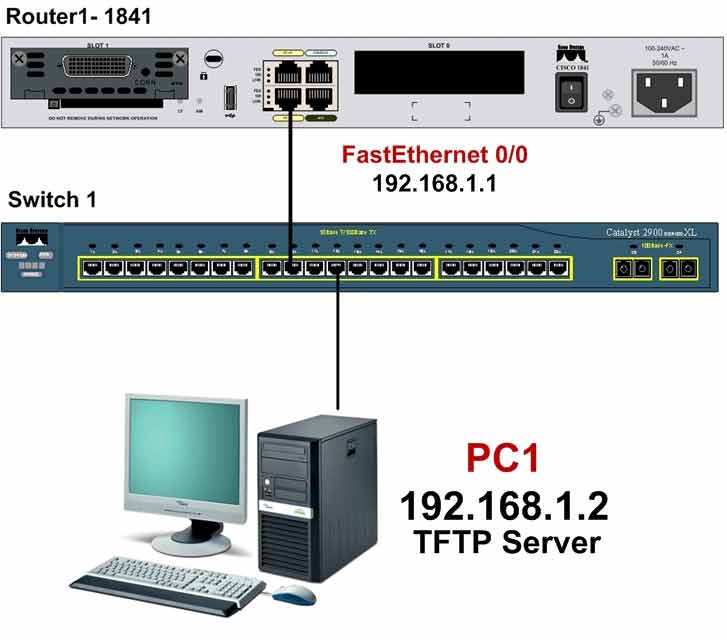
Network Topology
PC1 Configuration
| Computer | IP Address | Subnet Mask | Default Gateway |
|---|---|---|---|
| PC1 | 192.168.1.2 | 255.255.255.0 | 192.168.1.1 |
Switch Port Connections
| Switch Port | Connected Device |
|---|---|
| FastEthernet 0/1 | PC1 |
| FastEthernet 0/2 | Router |
Router Port Connections
| Router Port | Connected Device | IP Address |
|---|---|---|
| FastEthernet 0/0 | Switch | 192.168.1.1 |
Step 1: Configure PC1 as a TFTP Server
Download and install Cisco TFTP Server on PC1, then run it and apply the following configuration.
After installing and running the software, you’ll see the Cisco TFTP Server interface shown below.
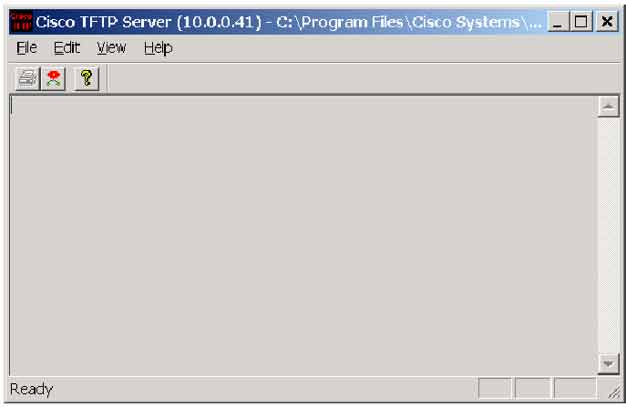
Click the View menu and select Options to open the Options dialog:
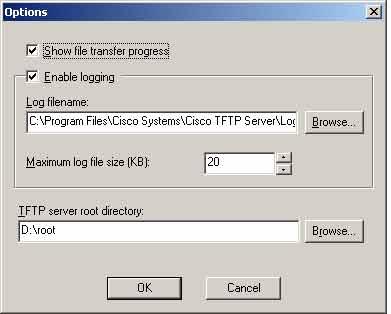
In the TFTP Server root directory field, set a path where the TFTP server will store files. This is the root directory — the location where all files exchanged between the PC and the router through TFTP are stored.
Step 2: Configure the Router and Set IP Addresses on Router Interfaces
Configure FastEthernet 0/0 and set the IP address:
Router#config t
Router(config)#hostname Router1
Router1(config)#interface fastEthernet 0/0
Router1(config-if)#ip address 192.168.1.1 255.255.255.0
Router1(config-if)#no shutdown
Step 3: Display Router IOS Information with show version
Use show version to get information about the router or switch IOS version:
Router1#show version
Find the IOS version in the show version output.
Step 4: Display Flash Memory Information
Run show flash on the router and answer these questions:
- How much total Flash memory is available?
- How much Flash memory is available (free)?
- How much Flash memory is used?
Router1# show flash
Step 5: Copy the Router IOS File to TFTP
Before copying the IOS file to the TFTP server, verify the connection between the router and the TFTP server. Use the following command to copy the IOS file to TFTP:
Router1#copy flash tftp

Address or name of remote host []? 192.168.1.2
Source filename []? c1800-y-mz.122-11.T.bin
Destination filename [c1800-y-mz.122-11.T.bin]?
!!!!!!!!!!!!!!!!!!!!!!!!!!!!!!!!!!!!!!!!!!!!!!!!!!!!!!!!!!!!!!!!!!!!!!!
!!!!!!!!!
!!!!!!!!!!!!!!!!!!!!!!!!!!!!!!!!!!!!!!!!!!!!!!!!!!!!!!!!!!!!!!!!!!!!!!!
!!!!!!!!!
!!!!!!!!!!!!!!!!!!!!!!!!!!!!!!!!!!!!!!!!!!!!!!!!!!!!!!!!!!!!!!!!!!!!!!!
4284648 bytes copied in 34.012 secs (125975 bytes/sec)
After running the command, you’re asked for the TFTP server’s IP address.
At the Source filename []? prompt, enter the exact name of the file in the router’s Flash that you want to copy to TFTP. If you don’t know the exact name, check the show flash output.
At the Destination filename [c1700-y-mz.122-11.T.bin]? prompt, you’re asked to name the file on the TFTP server. Press Enter to keep the original IOS name.
After a moment, the IOS file in Flash is transferred to the TFTP server.
Step 6: Copy the IOS File from TFTP to the Router’s Flash Memory
Use the following command on the router to copy the IOS file from the TFTP server to Flash:
Router1#copy tftp flash

Address or name of remote host []? 192.168.1.2
Source filename []? c1800-y-mz.122-11.T.bin
Destination filename [c1800-y-mz.122-11.T.bin]? [Enter]
%Warning: There is a file already existing with this name
Do you want to over write? [confirm]
Accessing tftp://192.168.1.2/c1800-y-mz.122-11.T.bin...
Erase flash: before copying? [confirm] [Enter]
Erasing the flash filesystem will remove all files! Continue?
[confirm] [Enter]
Erasing device...

eeeeeeeeeeeeeeeeeeeeeeeeeeeeeeeeeeeeeeeeeeeeeeeeeeeeeeeeeeeeee
eeeeeeeeeeeeeeeeeeeeeeeeeeeeeeeeeeeeeeeeeeeeeeeeeeeeeeeeeeeeeeeeee
...erased
Erase of flash: complete
Loading c1800-y-mz.122-11.T.bin from 192.168.1.2 (via FastEthernet0):!!!!!!!!!!
After running copy tftp flash, you’re asked for the TFTP server’s IP address.
At the Source filename []? prompt, enter the exact name of the file on the TFTP server that you want to copy to the router’s Flash. The filename must be exact — check the TFTP server’s root directory if you’re not sure.
At the Destination filename [c1800-y-mz.122-11.T.bin]? prompt, choose a name for the file in Flash. Press Enter to keep the name from the TFTP server.
Caution: At the Erase flash: before copying? prompt, the router asks whether to erase all Flash contents before copying the IOS from TFTP. Erasing Flash removes all existing files. The router warns you with Erasing the flash filesystem will remove all files! Continue? — confirm carefully.
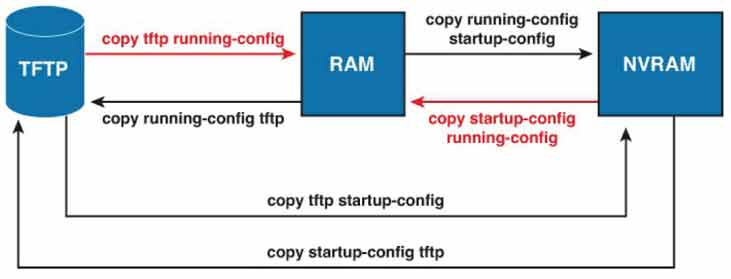
Step 7: Change the Image System File on the Router
A router’s Flash can hold more than one IOS image — but the router boots from only one. To view the IOS files available on the router:
Router1#show flash

System flash directory:
File  Length   Name/status
  3   33591768 c1841-advipservicesk9-mz.124-15.T1.bin
  4   16599160 c1841-ipbasek9-mz.124-12.bin
  2   28282    sigdef-category.xml
  1   227537   sigdef-default.xml
[50446747 bytes used, 13569637 available, 64016384 total]
63488K bytes of processor board System flash (Read/Write)
As you can see in the show flash output, two IOS image files exist in the router’s Flash memory:
c1841-advipservicesk9-mz.124-15.T1.binc1841-ipbasek9-mz.124-12.bin
To see which IOS image the router is currently using and booted from, look at the show version output:
Router1#show version

Cisco IOS Software, 1841 Software (C1841-ADVIPSERVICESK9-M), Version 12.4(15)T1, RELEASE SOFTWARE (fc2)
Technical Support: http://www.cisco.com/techsupport
Copyright (c) 1986-2007 by Cisco Systems, Inc.
Compiled Wed 18-Jul-07 04:52 by pt_team
ROM: System Bootstrap, Version 12.3(8r)T8, RELEASE SOFTWARE (fc1)

System returned to ROM by power-on
System image file is "flash:c1841-advipservicesk9-mz.124-15.T1.bin"
As you can see in the output above, the router uses the system image file c1841-advipservicesk9-mz.124-15.T1.bin. Now we’ll change the router’s System Image File — its operating system — to the other file in Flash: c1841-ipbasek9-mz.124-12.bin:
Router#config t
Router(config)#hostname Router1
Router1(config)#boot system flash c1841-ipbasek9-mz.124-12.bin
Next, save the router configuration and reload the router:
Router1#copy running-config startup-config
Router1#reload
After the router reloads, use show version to verify the system image file:
Router1#show version

Cisco IOS Software, 1841 Software (C1841-IPBASEK9-M), Version 12.4(12), RELEASE SOFTWARE (fc1)
Technical Support: http://www.cisco.com/techsupport
Copyright (c) 1986-2006 by Cisco Systems, Inc.
Compiled Mon 15-May-06 14:54 by pt_team

ROM: System Bootstrap, Version 12.3(8r)T8, RELEASE SOFTWARE (fc1)

System returned to ROM by power-on
System image file is "flash:c1841-ipbasek9-mz.124-12.bin"
As you can see in the output above, the router now uses the system image file c1841-ipbasek9-mz.124-12.bin.
IOS Management Command Reference
| Command | Description |
|---|---|
| Router1#show version | Displays IOS version, system image file, and memory info. |
| Router1#show flash | Displays Flash memory contents and available/used space. |
| Router1#copy flash tftp | Copies the IOS image from Flash to a TFTP server (backup). |
| Router1#copy tftp flash | Copies the IOS image from a TFTP server to Flash (restore). |
| Router1(config)#boot system flash [filename] | Sets the IOS image the router boots from. |
| Router1#copy running-config startup-config | Saves the running-config to NVRAM. |
| Router1#reload | Reboots the router. |
Boot System Options
| Command | Boot Source | Use Case |
|---|---|---|
boot system flash [file] |
Flash memory | Standard — boot from a specific image in Flash |
boot system tftp [file] [ip] |
TFTP server | Boot from a TFTP server (recovery) |
boot system rom |
ROM (Mini-IOS) | Recovery when Flash is corrupted |
Where IOS and Config Files Live
| File | Location | Survives Reboot? |
|---|---|---|
| running-config | RAM | ❌ No |
| startup-config | NVRAM | ✅ Yes |
| IOS image | Flash | ✅ Yes |
| TFTP backup | External TFTP server | ✅ Yes |
| Mini-IOS | ROM | ✅ Yes |
When to Back Up the IOS Image
- Before IOS upgrade — keep the old version for rollback
- Device replacement — restore the IOS to a replacement router
- Recovery planning — restore if Flash becomes corrupted
- Version standardization — deploy the same IOS to multiple routers
- Lab testing — test new IOS versions and revert if needed
✅ Key Takeaways
- Flash stores the IOS image; NVRAM stores startup-config; RAM stores running-config.
show versionreveals the current system image file.show flashlists all IOS images and available space.copy flash tftpbacks up the IOS to a TFTP server.copy tftp flashrestores an IOS image from TFTP to Flash.boot system flash [file]selects which IOS to boot from.- Always save config and reload after changing the boot image.
- Erasing Flash during a copy removes all files — confirm carefully.
- Verify the new IOS with
show versionafter reload.
