


SSH Configuration & Secure Remote Access: Encrypted Router Management
Lab Objective
- Configure SSH on a Cisco router
- Configure an SSH client and verify a successful SSH connection
🛠️ Equipment Needed for This Lab
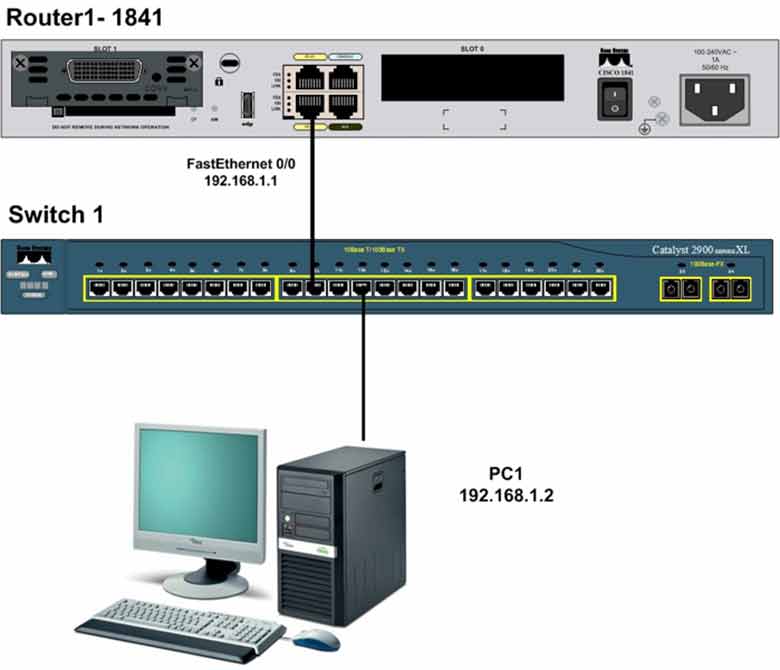
- 1 Cisco 1841 router running IOS 12.4(20)T
- 1 Cisco 2960 switch
- 1 PC with PuTTY installed
Why SSH Replaces Telnet
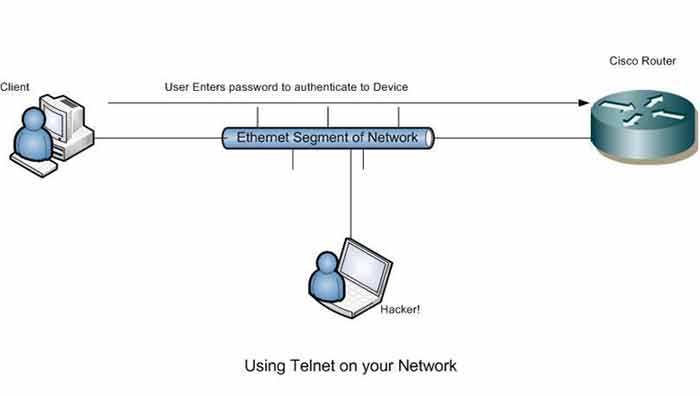
Earlier labs covered Telnet configuration and access. One major weakness of Telnet is its low security. In Telnet connections, the password is exchanged between the computer and the router in clear text — readable by anyone. If a hacker captures this traffic, they get the Telnet password.
SSH — Secure Shell — solves this security gap. SSH provides a secure terminal connection between the router and other devices. All data transmitted over SSH connections is encrypted.
SSH has replaced Telnet as the standard for remote access. Cisco recommends SSH over Telnet for all remote management.
Security risk: A hacker can capture Telnet passwords through packet sniffing. That’s why SSH is the only acceptable choice for production networks.
Step 1: Set the IP Address and Hostname on the Router
After connecting to Router1, run these commands:
Router#config t
Router(config)#hostname Router1
Router1(config)#
The router hostname changes from Router to Router1. Now configure FastEthernet 0/0 with its IP address:
Router1#config t
Router1(config)#interface fastEthernet 0/0
Router1(config-if)#ip address 192.168.1.1 255.255.255.0
Router1(config-if)#no shutdown
Step 2: Set a Domain Name for SSH Connections
Use the ip domain-name command to set a domain name. This domain name is used to generate the encryption key:
Router1#config t
Router1(config)#ip domain-name certget.com
Step 3: Generate Crypto Keys for Encryption
Use the crypto key command to generate a 1024-bit encryption key for SSH:
Router1#config t
Router1(config)#crypto key generate rsa general-keys modulus 1024
In this example, the key size is 1024 bits. The default is 512 bits. The valid range is 360 to 2048 bits. Higher values increase security but also increase processing overhead.
Step 4: Create a Local User on the Router
Create a user with Privilege 15 — the highest access level on the router. Privilege 1 is the lowest. This user is used for SSH access — enter the username and password when connecting.
Router1(config)#username ccna privilege 15 secret Cisco123456
This creates a local user named ccna with the password Cisco123456, stored in encrypted form on the router.
Step 5: Enable SSH on VTY Lines
Enable SSH on the VTY lines as shown below:
Router1#config t
Router1(config)#line vty 0 15
Router1(config-line)#login local
Router1(config-line)#transport input ssh
This allows SSH connections on the VTY lines — but blocks Telnet. The table below shows the options for enabling SSH and Telnet on VTY lines:
| Command | Description |
|---|---|
| Router(config-line)#transport input ssh | Allows SSH on VTY lines — Telnet is blocked. Most secure option. |
| Router(config-line)#transport input ssh telnet | Allows SSH and Telnet simultaneously on VTY lines. |
| Router(config-line)#transport input telnet | Allows only Telnet on VTY lines. |
| Router(config-line)#transport input none | Blocks both SSH and Telnet on VTY lines. |
Step 6: Set Additional SSH Options
Configure the SSH protocol version:
| Command | Description |
|---|---|
| Router(config)#ip ssh version 1 | Sets SSH protocol version 1 (legacy, less secure). |
| Router(config)#ip ssh version 2 | Sets SSH protocol version 2 (recommended). |
Step 7: Set SSH Time-out and Authentication-Retries
Set the SSH time-out in seconds. When a user connects via SSH, they must authenticate within this window — otherwise the connection is dropped:
Router1#config t
Router1(config)#ip ssh time-out 100
If authentication doesn’t complete within 100 seconds — or if the user’s credentials fail — the SSH connection is dropped. The SSH time-out is in seconds, with a valid range of 0 to 120.
You can also set authentication-retries to control how many times a user can enter the wrong password:
Router1#config t
Router1(config)#ip ssh authentication-retries 2
In this case, the user can enter the wrong SSH password twice before the connection fails.
Step 8: Connect to the Router via SSH from a PC
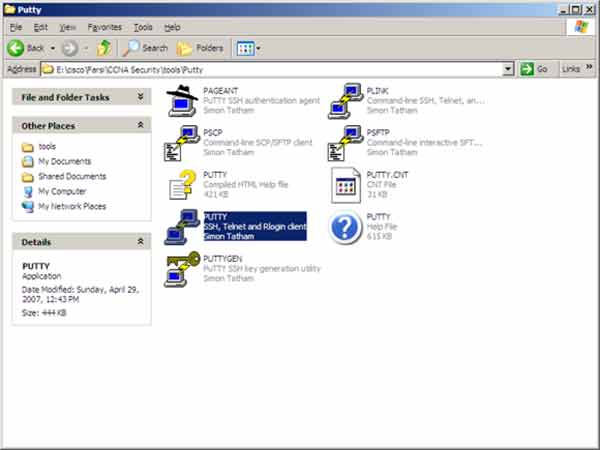
Install an SSH client — PuTTY works well. Run the PUTTY executable as shown below:
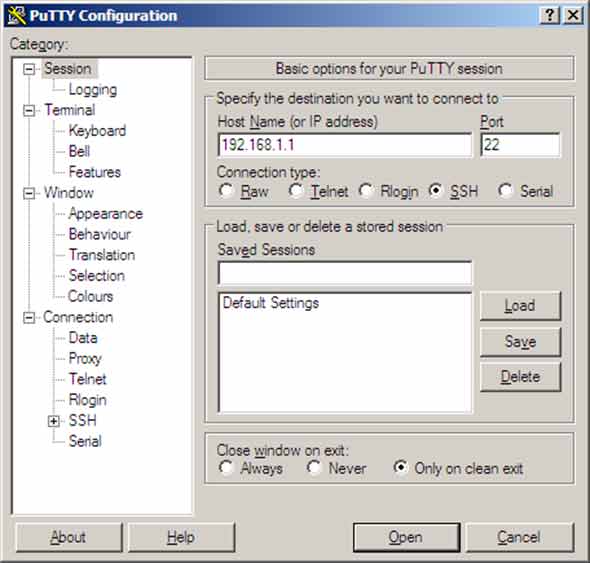
In the PuTTY Configuration window, set the following:
- Host Name (or IP address): the router’s IP address (192.168.1.1)
- Port: 22 (the SSH port)
- Connection type: SSH
Then click Open.
After clicking Open, you’re taken to the login screen. PuTTY prompts for the SSH username and password — as shown below:
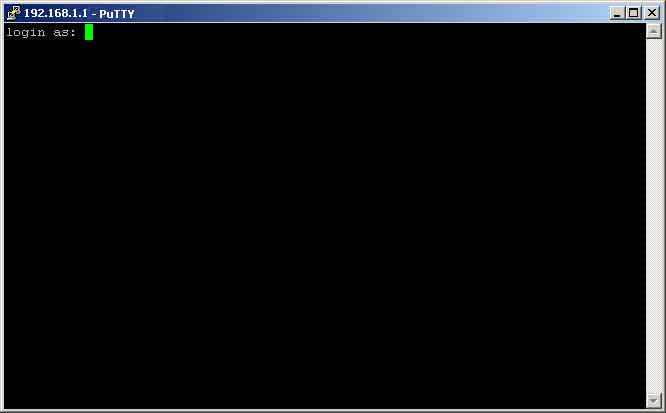
Enter ccna and Cisco123456 to log in. You’ll reach the router’s User Mode prompt through the encrypted SSH connection.
VTY Transport Options at a Glance
| Command | SSH | Telnet | Security |
|---|---|---|---|
transport input ssh |
✅ | ❌ | 🔒 Highest |
transport input ssh telnet |
✅ | ✅ | ⚠️ Mixed |
transport input telnet |
❌ | ✅ | ❌ Low |
transport input none |
❌ | ❌ | 🔒 Locked |
Full SSH Command Reference
| Command | Description |
|---|---|
| Router(config)#hostname Router1 | Sets the router hostname to Router1. |
| Router1(config)#interface fastEthernet 0/0 | Enters Interface Configuration Mode for FastEthernet 0/0. |
| Router1(config-if)#ip address 192.168.1.1 255.255.255.0 | Assigns IP address and subnet mask. |
| Router1(config-if)#no shutdown | Enables the interface. |
| Router1(config)#ip domain-name certget.com | Sets the domain name used for RSA key generation. |
| Router1(config)#crypto key generate rsa general-keys modulus 1024 | Generates a 1024-bit RSA key pair for SSH encryption. |
| Router1(config)#username ccna privilege 15 secret Cisco123456 | Creates a local user with Privilege 15 access. |
| Router1(config)#line vty 0 15 | Enters VTY line configuration mode for 16 connections. |
| Router1(config-line)#login local | Uses the local user database for authentication. |
| Router1(config-line)#transport input ssh | Allows only SSH on VTY lines (blocks Telnet). |
| Router1(config)#ip ssh version 2 | Sets SSH protocol version 2 (recommended). |
| Router1(config)#ip ssh time-out 100 | Sets SSH authentication time-out to 100 seconds. |
| Router1(config)#ip ssh authentication-retries 2 | Allows two wrong password attempts before dropping the connection. |
SSH vs. Telnet
| Feature | SSH | Telnet |
|---|---|---|
| Encryption | ✅ Full | ❌ None |
| TCP Port | 22 | 23 |
| Password visible on network | No | Yes |
| Security level | High | Low |
| Recommended? | ✅ Yes | ❌ No |
| Requires RSA keys | Yes | No |
| Configuration mode | line vty + crypto keys |
line vty + password |
RSA Key Size Comparison
| Key Size | Security Level | CPU Load | Recommended? |
|---|---|---|---|
| 512 bits | Low | Light | ❌ No (default) |
| 768 bits | Medium | Moderate | ⚠️ Acceptable |
| 1024 bits | High | Moderate | ✅ Yes |
| 2048 bits | Very High | Heavy | ✅ Best (if CPU allows) |
Privilege Levels
| Level | Access | Typical Use |
|---|---|---|
| 0 | Very limited | Restricted commands |
| 1 | User Mode | Basic show commands |
| 15 | Privilege Mode (highest) | Full router configuration |
Best practice: Assign users the minimum privilege level they need. Use Privilege 15 only for administrators who require full configuration access.
✅ Key Takeaways
- SSH encrypts all data — Telnet sends everything in clear text.
- SSH runs on TCP port 22; Telnet uses TCP port 23.
- Set a domain name before generating RSA keys.
- Generate RSA keys with
crypto key generate rsa— use 1024 or 2048 bits. - Create a local user with
username [name] privilege 15 secret [password]. - Use
login localandtransport input sshon VTY lines. - Set SSH time-out (0–120 seconds) and authentication-retries.
- Connect with PuTTY: IP address, port 22, SSH connection type.
- Use SSH version 2 — it’s more secure than version 1.
