


Telnet Configuration & Remote Connection: Managing a Router Over the Network
Configure Telnet on a Cisco router and connect remotely over the LAN. Set VTY lines, passwords, and verify with ping and Telnet from a PC.
Lab Objective
- Configure Telnet on Router1
- Establish a Telnet connection over the network
- Test Telnet connectivity
🛠️ Equipment Needed for This Lab
- 1 Cisco router
- 1 Cisco switch
- 1 PC
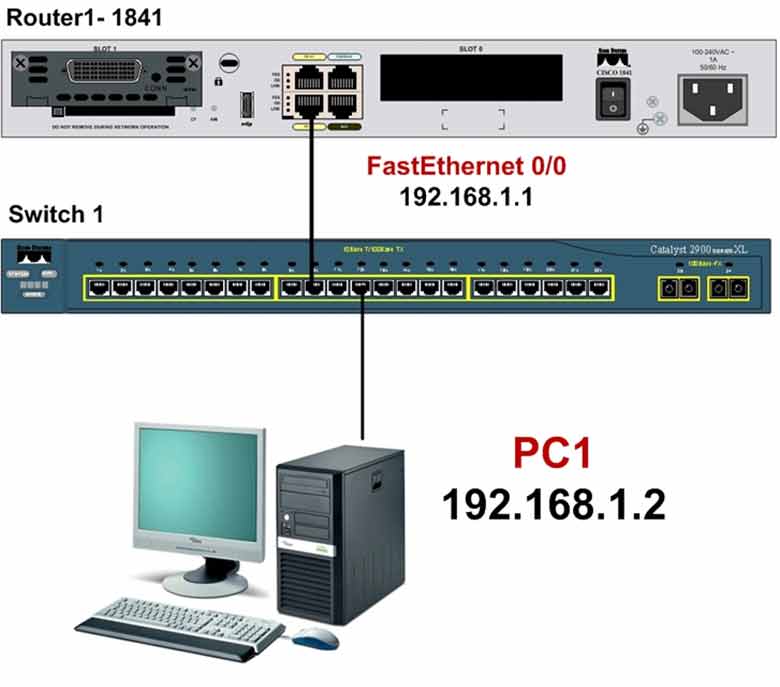
Network Topology
Router1 Port Connections
| Router1 Port | Connected Device | IP Address |
|---|---|---|
| FastEthernet 0/0 | Switch1 | 192.168.1.1 |
Switch1 Port Connections
| Switch1 Port | Connected Device | Cable Type |
|---|---|---|
| FastEthernet 0/2 | Router1 | UTP Cat 6 |
| FastEthernet 0/3 | PC1 | UTP Cat 6 |
| FastEthernet 0/4 | PC2 | UTP Cat 6 |
PC1 Configuration
| Computer | IP Address | Subnet Mask | Default Gateway |
|---|---|---|---|
| PC1 | 192.168.1.2 | 255.255.255.0 | 192.168.1.1 |
When to Use Telnet Access
Use Telnet when the router interface has an IP address and the router is correctly configured for Telnet access. You can use Telnet from the internal network or over the internet.
Step 1: Configure the Router and Set IP Addresses on Router1 Interfaces
Configure FastEthernet 0/0 and set the IP address:
Router#config t
Router(config)#hostname Router1
Router1(config)#interface fastEthernet 0/0
Router1(config-if)#ip address 192.168.1.1 255.255.255.0
Router1(config-if)#no shutdown
Step 2: Configure the Switch
Configure the switch hostname:
Switch#config t
Switch(config)#hostname Switch1
Switch1(config)#
Step 3: Enable Telnet on Router1
To enable Telnet on Router1, run the following commands:
Router1# config t
Router1(config)#line vty 0 15
Router1(config-line)#password CCNA
Router1(config-line)#login
Router1(config-line)#exit
Router1(config)#
| Command | Description |
|---|---|
| Router(config)#line vty 0 15 | Enters Telnet (VTY) configuration mode for 16 simultaneous connections — numbered 0 through 15. Your equipment may support more connections. |
| Router(config-line)#password CCNA | Sets CCNA as the Telnet password. |
| Router(config-line)#login | Enables the password prompt when entering User Mode via Telnet. |
Important: To access the router through Telnet, you must also configure a password for Privilege Mode. Without it, you can’t reach Privilege Mode via Telnet. The next step covers this.
Configure the Privilege Mode password on Router1:
Router1#config t
Router1(config)#enable secret CCNA
In this command, CCNA is set as the secret password for Privilege Mode access.
Step 4: Establish a Remote Telnet Connection over the LAN or Internet from PC1
Now we’ll use PC1 to connect to Router1 via Telnet and manage/configure it remotely.
First, test the connection between Router1 and PC1 with the ping command:
PC1>ping 192.168.1.1

Pinging 192.168.1.1 with 32 bytes of data:
Reply from 192.168.1.1: bytes=32 time=20ms TTL=254
Reply from 192.168.1.1: bytes=32 time=20ms TTL=254
Reply from 192.168.1.1: bytes=32 time=20ms TTL=254
Reply from 192.168.1.1: bytes=32 time=20ms TTL=254
The connection between PC1 and Router1 works correctly.
Next, establish a Telnet connection to Router1 from PC1’s command prompt:
PC1>telnet 192.168.1.1
Password: CCNA
Router1>
Enter the Telnet password we configured earlier — CCNA — to enter the Telnet environment.
You’ve now entered User Mode through Telnet. From here, you can manage and configure the router remotely.
Step 5: Close the Telnet Connection on PC1
To close the Telnet connection and return to the PC’s command prompt, use the following command on the router:
Router1>exit

PC1>
Router1 Final Configuration
hostname Router1
!
!
enable secret CCNA
!
!
!
interface fastEthernet0/0
 ip address 192.168.1.1 255.255.255.0
 no shutdown
!
!
!
line vty 0 4
 password ccna
 login
!
!
End
Telnet Configuration Reference
| Command | Description |
|---|---|
| Router(config)#line vty 0 15 | Enters VTY (Telnet) line configuration mode for 16 connections (0–15). |
| Router(config-line)#password CCNA | Sets the Telnet password. |
| Router(config-line)#login | Enables password checking on Telnet lines. |
| Router(config)#enable secret CCNA | Sets the encrypted Privilege Mode password. |
| Router(config)#interface fastEthernet 0/0 | Enters Interface Configuration Mode for FastEthernet 0/0. |
| Router(config-if)#ip address 192.168.1.1 255.255.255.0 | Assigns IP address and subnet mask. |
| Router(config-if)#no shutdown | Enables the interface. |
Telnet vs. SSH
| Feature | Telnet | SSH |
|---|---|---|
| Encryption | ❌ None | ✅ Full |
| TCP Port | 23 | 22 |
| Password sent in plain text | Yes | No |
| Security level | Low | High |
| Recommended? | ❌ No | ✅ Yes |
| Configuration mode | line vty |
line vty + crypto keys |
Security warning: Telnet sends all data — including passwords — in plain text. Use SSH for production networks. Telnet is best reserved for lab environments or legacy systems.
✅ Key Takeaways
- Telnet lets you manage a Cisco router remotely over an IP network.
- Use
line vty 0 15to configure 16 simultaneous Telnet sessions. - Set the VTY password with
password [word]and enable checking withlogin. - You must also configure
enable secretto reach Privilege Mode via Telnet. - Always test connectivity with
pingbefore attempting Telnet. - Use
telnet [IP]from the PC to connect. - Type
exiton the router to close the Telnet session. - Telnet is unencrypted — use SSH for secure remote access.
