


Router Configuration File Management with TFTP: Backup & Restore
Lab Objective
- Configure a Cisco TFTP Server
- Back up the router configuration file to TFTP
- Restore the backup from TFTP to the router’s NVRAM
- Display the contents of the startup-config file stored in NVRAM
🛠️ Equipment Needed for This Lab
- 1 Cisco router
- 1 Cisco 2960 switch
- 1 PC with PuTTY installed
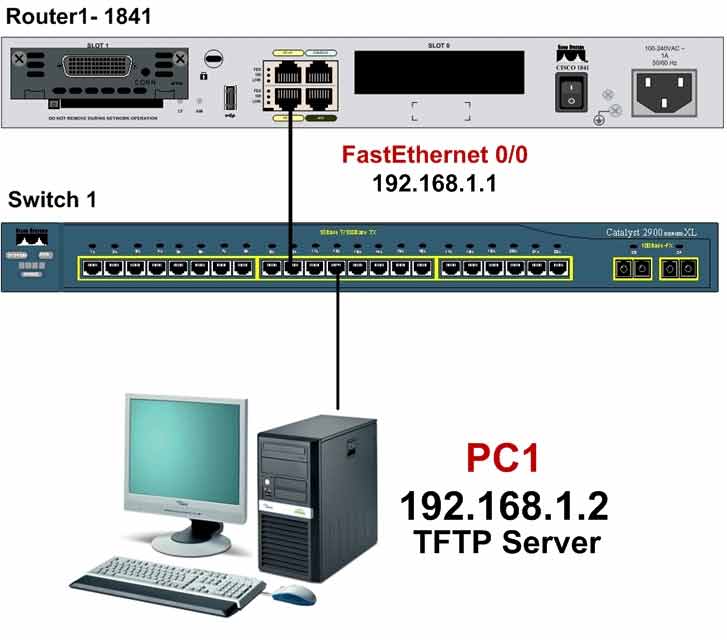
Network Topology
PC1 Configuration
| Computer | IP Address | Subnet Mask | Default Gateway |
|---|---|---|---|
| PC1 | 192.168.1.2 | 255.255.255.0 | 192.168.1.1 |
Switch1 Port Connections
| Switch1 Port | Connected Device |
|---|---|
| FastEthernet 0/1 | PC1 |
| FastEthernet 0/2 | Router1 |
Router1 Port Connections
| Router1 Port | Connected Device | IP Address |
|---|---|---|
| FastEthernet 0/0 | Switch1 | 192.168.1.1 |
What Is TFTP?
TFTP stands for Trivial File Transfer Protocol. It works at Layer 7 of the OSI model — very similar to FTP. It uses UDP to transfer packets. One common use of TFTP is transferring firmware and operating systems to devices like routers, switches, and other hardware.
TFTP is faster than FTP and requires no authentication.
With TFTP, we exchange data between a PC and a router or switch — configuration files, IOS images, or any other data. For this lab, install Cisco’s TFTP software on PC1. Once installed, PC1 becomes a TFTP server.
Step 1: Configure PC1 as a TFTP Server
Download and install Cisco TFTP Server on PC1, then run it and apply the following configuration.
After installing and running the software, you’ll see the Cisco TFTP Server interface shown below.
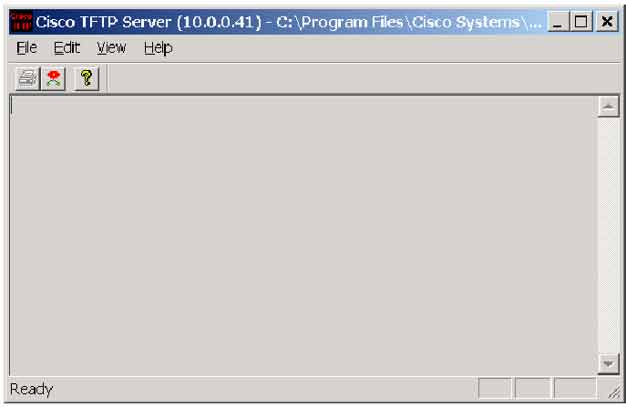
Click the View menu and select Options to open the Options dialog:
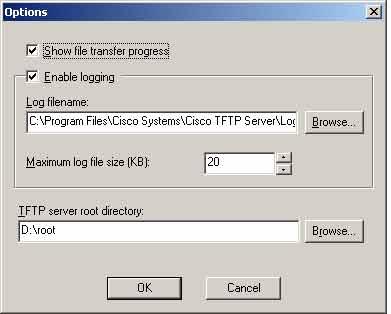
In the TFTP Server root directory field, set a path where the TFTP server will store files. This is the root directory — the location where all files exchanged between the PC and the router through TFTP are stored.
Step 2: Configure the Router and Set IP Addresses on Router Interfaces
Configure FastEthernet 0/0 and set the IP address:
Router#config t
Router(config)#hostname Router1
Router1(config)#interface fastEthernet 0/0
Router1(config-if)#ip address 192.168.1.1 255.255.255.0
Router1(config-if)#no shutdown
Step 3: Transfer the Startup-config from NVRAM to the TFTP Server Root Directory
To transfer the startup-config from NVRAM to the TFTP server, run the following commands on Router1:
Router1#copy startup-config tftp

Address or name of remote host []? 192.168.1.2
Destination filename [Router-confg]?
!!!!!!!!!!!!!!!!!!!!!!!!!!!
After running this command, the router asks for the name or IP address of the TFTP server. Enter the TFTP server’s IP address.
At the Destination filename [Router-confg]? prompt, you’ll be asked to name the file stored on the TFTP server. Press Enter to keep the original name, or type a new name.
Well done: You’ve copied the startup-config from NVRAM to the TFTP server. If the configuration in NVRAM is ever lost or corrupted, you can restore it from the TFTP server.
Step 4: Restore the Backup from TFTP to the Router’s NVRAM
Use the following command to restore the router configuration backup from the TFTP server to NVRAM — even if the entire router configuration has been wiped:
Router1# copy tftp startup-config

Address or name of remote host []? 192.168.1.2
Source filename []? startup-config
Destination filename [startup-config]? [Enter]
This step does the reverse of Step 3 — copying data from the TFTP server to NVRAM.
After running copy tftp startup-config, you’ll be prompted for the TFTP server’s name or IP address.
At the Source filename []? prompt, enter the exact name of the configuration file on the TFTP server. If you’re unsure of the filename, check the TFTP server’s root directory.
At the Destination filename [startup-config]? prompt, choose a name for the file on NVRAM. Press Enter to save it as startup-config.
Step 5: Display the Contents of the Startup-config File in NVRAM
Use the following command to view the contents of the startup-config file stored in NVRAM:
Router1# show startup-config
Study the output of show startup-config carefully. What information do you see?
Screenshot: show startup-config output displaying the NVRAM configuration — appears here.
TFTP Command Reference
| Command | Description |
|---|---|
| Router1#copy startup-config tftp | Copies the startup-config from NVRAM to the TFTP server (backup). |
| Router1#copy tftp startup-config | Copies a configuration file from the TFTP server to NVRAM (restore). |
| Router1#copy running-config tftp | Copies the running-config from RAM to the TFTP server. |
| Router1#copy tftp running-config | Copies a configuration file from the TFTP server to RAM. |
| Router1#show startup-config | Displays the contents of the startup-config file in NVRAM. |
| Router1#show running-config | Displays the active configuration in RAM. |
TFTP vs. FTP
| Feature | TFTP | FTP |
|---|---|---|
| Transport Protocol | UDP | TCP |
| Authentication | ❌ None | ✅ Username + Password |
| Speed | Faster (UDP) | Slower (TCP) |
| Layer (OSI) | Layer 7 | Layer 7 |
| Common Use | Config backup, IOS transfer | General file transfer |
| Security | Low (no auth) | Moderate |
Router Configuration File Locations
| File | Location | Purpose |
|---|---|---|
| running-config | RAM (volatile) | Active configuration |
| startup-config | NVRAM (persistent) | Saved configuration |
| IOS image | Flash | Operating system |
| TFTP backup | External TFTP server | Off-device backup |
When to Use TFTP Backup
Best Use Cases for TFTP Backup
- Before IOS upgrade — save the config before flashing a new IOS
- Before major changes — roll back if the change breaks the network
- After initial setup — archive the working baseline
- Device replacement — clone the config to a new router
- Compliance audits — keep off-device config copies
- Disaster recovery — restore after NVRAM wipe
✅ Key Takeaways
- TFTP is a simple file transfer protocol at Layer 7 using UDP.
- TFTP requires no authentication — faster than FTP but less secure.
- Use
copy startup-config tftpto back up the router config. - Use
copy tftp startup-configto restore a config to NVRAM. - Use
show startup-configto verify the NVRAM configuration. - TFTP backups are off-device — safe even if NVRAM is wiped.
- Store TFTP backup files in a secure location — they contain passwords.
- Always verify the transfer completed successfully before relying on the backup.
