


Static Route Configuration: Connecting Remote Networks
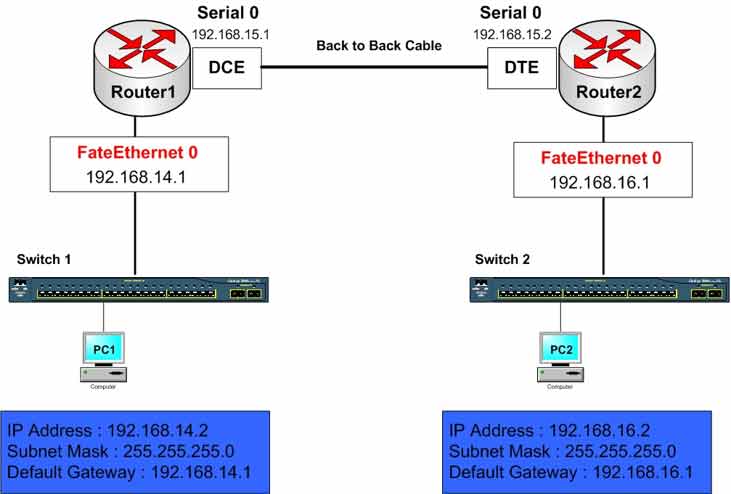
Configure static routes between two Cisco routers. Enable communication between remote subnets, verify routing tables, and test with ping.
Lab Objective
- Configure Static Routing between routers so networks connected to each router can reach networks connected to the other router
- Enable communication between computers in different subnets
🛠️ Equipment Needed for This Lab
- 2 Cisco routers
- 2 Cisco 2960 switches
- 2 PCs
Router Interface Configuration
| Router | Interface | IP Address | Subnet Mask | Serial Type |
|---|---|---|---|---|
| Router 1 | FastEthernet 0 | 192.168.14.1 | 255.255.255.0 | — |
| Router 2 | FastEthernet 0 | 192.168.16.1 | 255.255.255.0 | — |
| Router 1 | Serial 0 | 192.168.15.1 | 255.255.255.0 | DCE |
| Router 2 | Serial 0 | 192.168.15.2 | 255.255.255.0 | DTE |
PC Configuration
| Computer | IP Address | Subnet Mask | Default Gateway |
|---|---|---|---|
| PC1 | 192.168.14.2 | 255.255.255.0 | 192.168.14.1 |
| PC2 | 192.168.16.2 | 255.255.255.0 | 192.168.16.1 |
What Is Routing?
Routing is the process of forwarding packets from one network to another using routers and Layer 3 devices.
Routers must be configured before use to build their routing table. Routers make all forwarding decisions based on this table. Every router must know about every network it needs to reach.
A router’s routing table can be built in two ways:
- Static Routing
- Dynamic Routing
With static routing, the network administrator manually enters routes into the table using knowledge of the network topology.
Static Routing: Pros and Cons
Advantages of Static Routing
- No CPU overhead on the router
- No bandwidth consumed by routing table updates
- Higher security — you control exactly which routes are added
Disadvantages of Static Routing
- You must know every network and path in the internetwork
- New routes must be manually added to every router
- No automatic failover if a path fails
- Hard to maintain in large networks — high risk of errors
Static routing is best for small networks with limited, stable paths.
Step 1: Configure Router1 and Router2 and Set IP Addresses on Router Interfaces
Configure FastEthernet 0 on Router1:
Router1#config t
Router1(config)#interface fastEthernet 0
Router1(config-if)#ip address 192.168.14.1 255.255.255.0
Router1(config-if)#no shutdown
Configure Serial 0 on Router1:
Router1(config)#interface serial 0
Router1(config-if)#ip address 192.168.15.1 255.255.255.0
Router1(config-if)#clock rate 64000
Router1(config-if)#no shutdown
Configure FastEthernet 0 on Router2:
Router2#config t
Router2(config)#interface fastEthernet 0
Router2(config-if)#ip address 192.168.16.1 255.255.255.0
Router2(config-if)#no shutdown
Configure Serial 0 on Router2:
Router2(config)#interface serial 0
Router2(config-if)#ip address 192.168.15.2 255.255.255.0
Router2(config-if)#no shutdown
Step 2: Configure the Workstation PCs
PC1 and PC2 must have the correct IP address configuration. To reach computers on other networks, they also need a Default Gateway — the IP address of the closest router interface on their subnet.
| Setting | PC1 | PC2 |
|---|---|---|
| IP Address | 192.168.14.2 | 192.168.16.2 |
| Subnet Mask | 255.255.255.0 | 255.255.255.0 |
| Default Gateway | 192.168.14.1 | 192.168.16.1 |
Before configuring static routing, test connectivity between PC1 and PC2 with ping. As you can see below, PC1 and PC2 can’t communicate yet:
PC1>ping 192.168.16.2

Pinging 192.168.16.2 with 32 bytes of data:
Request timed out.
Request timed out.
Request timed out.
Request timed out.
❓ Why Can’t PC1 Reach PC2 with Ping?
Think about the routing tables on both routers. What’s missing?
Step 3: Check the Status of Router Interfaces
Use show ip interface brief to see each router interface’s status and IP address:
Router1# show ip interface brief
Review the output and answer:
- Is FastEthernet0 in an up state?
- Is its IP address correctly configured?
Run the same command on Router2:
Router2# show ip interface brief
Review the output and answer:
- Is FastEthernet0 in an up state?
- Is its IP address correctly configured?
Step 4: View the Routing Table on Each Router
Routers make forwarding decisions based on the routing table. When a packet reaches a router, the router checks the routing table to determine which interface to forward the packet out of. Use show ip route on Router1:
Router1#show ip route

Gateway of last resort is not set
C 192.168.14.0/24 is directly connected, FastEthernet 0
C 192.168.15.0/24 is directly connected, Serial 0
Now run show ip route on Router2:
Router2#show ip route

Gateway of last resort is not set
C 192.168.15.0/24 is directly connected, Serial 0
C 192.168.16.0/24 is directly connected, FastEthernet 0
❓ Why Are Some Routes Missing?
Router1 has routes that Router2 doesn’t — and vice versa. Router1 has no knowledge of 192.168.16.0 (connected to Router2), and Router2 has no knowledge of 192.168.14.0 (connected to Router1). Both routers only know their directly connected networks.
Step 5: Configure Static Routes on Router1 and Router2
Adding static routes puts the unknown networks into each router’s routing table, so the routers can forward packets to those networks.
Configure a static route on Router1 for the 192.168.16.0 network (connected to Router2):
Router1(config)#ip route 192.168.16.0 255.255.255.0 192.168.15.2
This tells Router1: any packet destined for 192.168.16.0/24 should be forwarded to 192.168.15.2 — the Router2 interface on the serial link. From there, Router2 delivers the packet to the directly connected 192.168.16.0 network.
Configure a static route on Router2 for the 192.168.14.0 network (connected to Router1):
Router2(config)#ip route 192.168.14.0 255.255.255.0 192.168.15.1
This tells Router2: any packet destined for 192.168.14.0/24 should be forwarded to 192.168.15.1 — the Router1 interface on the serial link.
Step 6: View the Routing Tables After Static Route Configuration
Run show ip route on Router1:
Router1#show ip route

Gateway of last resort is not set
C 192.168.14.0/24 is directly connected, FastEthernet 0
C 192.168.15.0/24 is directly connected, Serial 0
S 192.168.16.0/24 [1/0] via 192.168.15.2
Run show ip route on Router2:
Router2#show ip route

Gateway of last resort is not set
C 192.168.15.0/24 is directly connected, Serial 0
C 192.168.16.0/24 is directly connected, FastEthernet 0
S 192.168.14.0/24 [1/0] via 192.168.15.1
❓ Why Do Some Routes Show C and Others Show S?
C means Connected — the network is directly attached to the router. S means Static — the route was manually configured with ip route.
Both routers now have all required routes in their tables.
Step 7: Test Connectivity Between PCs with Ping
Now test connectivity between PC1 and PC2. From PC1, ping PC2:
PC1>ping 192.168.16.2

Pinging 192.168.16.2 with 32 bytes of data:
Reply from 192.168.16.2: bytes=32 time=20ms TTL=254
Reply from 192.168.16.2: bytes=32 time=20ms TTL=254
Reply from 192.168.16.2: bytes=32 time=20ms TTL=254
Reply from 192.168.16.2: bytes=32 time=20ms TTL=254
From PC2, ping PC1:
PC2>ping 192.168.14.2

Pinging 192.168.14.2 with 32 bytes of data:
Reply from 192.168.14.2: bytes=32 time=20ms TTL=254
Reply from 192.168.14.2: bytes=32 time=20ms TTL=254
Reply from 192.168.14.2: bytes=32 time=20ms TTL=254
Reply from 192.168.14.2: bytes=32 time=20ms TTL=254
Connectivity is now working in both directions.
Static Route Command Formats
| Command | Description |
|---|---|
| Router(config)#ip route [dest-network] [mask] [next-hop] | Next-hop format: Specify the destination network, its mask, and the gateway IP address of the next router to reach the destination. |
| Router(config)#ip route [dest-network] [mask] [exit-interface] | Exit-interface format: Specify the destination network, its mask, and the local outgoing interface the packet should use. |
| Example Command | Explanation |
|---|---|
| Router(config)#ip route 192.168.16.0 255.255.255.0 192.168.15.2 | Destination network: 192.168.16.0. Mask: 255.255.255.0. Gateway: 192.168.15.2 (Router2 serial interface). |
| Router(config)#ip route 192.168.16.0 255.255.255.0 Serial 0 | Destination network: 192.168.16.0. Mask: 255.255.255.0. Exit interface: Serial 0 — the local interface the packet should exit from. |
Routing Table Codes
| Code | Meaning | How It’s Added |
|---|---|---|
| C | Connected | Automatically — directly connected network |
| S | Static | Manually — ip route command |
| S* | Static Default | Manually — ip route 0.0.0.0 0.0.0.0 |
| R | RIP | Dynamic — learned from RIP |
| D | EIGRP | Dynamic — learned from EIGRP |
| O | OSPF | Dynamic — learned from OSPF |
Router1 Final Configuration
hostname Router1
!
!
!
interface fastEthernet 0
 ip address 192.168.14.1 255.255.255.0
 no shutdown
!
!
!
interface Serial 0
 ip address 192.168.15.1 255.255.255.0
 clock rate 64000
 no shutdown
!
!
!
ip route 192.168.16.0 255.255.255.0 192.168.15.2
!
!
End
Router2 Final Configuration
hostname Router2
!
!
!
interface fastEthernet 0
 ip address 192.168.16.1 255.255.255.0
 no shutdown
!
!
!
interface Serial 0
 ip address 192.168.15.2 255.255.255.0
 no shutdown
!
!
!
ip route 192.168.14.0 255.255.255.0 192.168.15.1
!
!
End
Static Routing vs. Dynamic Routing
| Feature | Static Routing | Dynamic Routing |
|---|---|---|
| Configuration | Manual — you type each route | Automatic — protocols exchange updates |
| CPU overhead | None | Higher — processes updates |
| Bandwidth | None | Uses link bandwidth for updates |
| Security | Higher — you control all routes | Lower — routers learn from peers |
| Failover | None — manual intervention required | Automatic — converges on new paths |
| Scalability | Poor for large networks | Excellent for large networks |
| Best for | Small, stable networks | Large, growing networks |
✅ Key Takeaways
- Static routes are manually configured with
ip route. - Routers only know directly connected networks by default.
- Static routes tell the router where to send packets for unknown networks.
- The command format is
ip route [network] [mask] [next-hop or exit-interface]. - C in the routing table = connected; S = static.
- Static routes require no CPU overhead and consume no update bandwidth.
- Static routing is best for small, stable networks.
- Dynamic routing scales better for large or changing networks.
- Always verify with
show ip routeand test withping.
