


Identifying Switch & Router LED Status: A Troubleshooting Guide
Why LED Status Matters
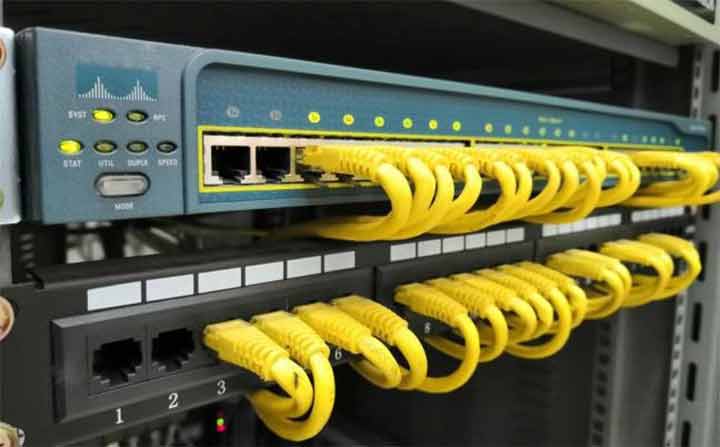
As shown in the image below, LED lights sit next to switch and router interfaces. Knowing what these LEDs mean is critical for managing and troubleshooting Cisco equipment. A quick glance at the LEDs can tell you whether a link is up, whether traffic is flowing, or whether a security violation has shut down a port.
Cisco Switch LED Status Reference
| LED Status | What It Means |
|---|---|
| LED Off | No link — no connection exists on that port. |
| Solid Green | A device is properly connected to the switch. |
| Blinking Green | Data is being transmitted and received on the port. |
| Solid Amber | The port cannot forward traffic. Causes include a port-security violation, STP blocking state, or similar issues. |
Amber LED – Warning and Special Conditions
The amber LED indicates warnings or special conditions — link interference, speed issues, or duplex mismatches. In some cases, the amber LED blinks in different patterns, each pattern signaling a specific problem:
- Fast blinking — self-test failure
- Slow blinking — speed mismatch
Off or Dark LED
An off LED has several meanings. Normally, an off LED means no physical connection or the port is disabled. In some cases, it signals a power issue or hardware failure.
On advanced systems, an off LED is part of the Energy Efficient Ethernet (EEE) power-saving mechanism. In this mode, ports enter a low-power state and the LEDs turn off intelligently.
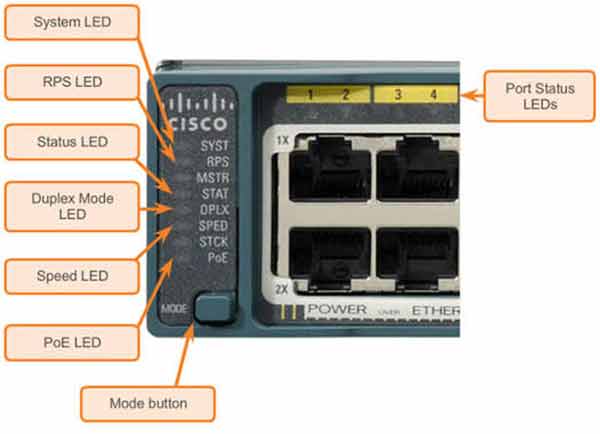
SYS LED – System Status
The SYS LED is one of the most important indicators on a Cisco switch. A solid green SYS LED means the system is operating normally — the boot process completed and the system is healthy.
When a problem occurs, the SYS LED changes color or blinks in different patterns:
- Blinking red — critical system error
- Amber — warning condition
RPS LED – Redundant Power Supply
The RPS LED shows the status of the redundant power supply. A solid green RPS LED means the backup power supply is working correctly — the system is safe from a power perspective.
If the redundant power supply has a problem, the RPS LED turns amber or blinks. This indicates issues like improper connection, power supply failure, or voltage mismatch.
STAT LED – Operational and Statistics Status
The STAT LED is normally solid green, indicating normal operation and correct network statistics collection. When this LED changes state, it signals problems collecting statistics or processing network data.
For example, blinking may indicate heavy data processing or a problem storing statistical information.
SPEED LED – Current Port Speed
The SPEED LED uses different colors or patterns to show the current connection speed — for example, 10, 100, or 1000 Mbps.
On more advanced switches, this indicator provides detailed information about connection quality and speed limitations. For example, blinking indicates changes in connection speed or speed-matching issues.
PoE LED – Power over Ethernet Status
The PoE LED exists only on switches that support Power over Ethernet. Here’s what it means:
- Solid on — the port is providing PoE power
- Blinking — PoE has been disabled due to an error
Cisco Router LED Status Reference
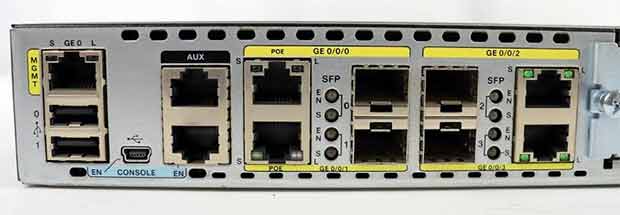
As shown in the image below, LED lights sit next to router interfaces. Knowing what these LEDs mean is critical for managing and troubleshooting routers.
| LED Status | What It Means |
|---|---|
| LED Off | No connection or a problem with the router interface connection. |
| LED On | The router interface is properly connected. |
| Solid Green | The router is active — activity is present on the interface. |
Quick Reference: All LED Indicators
| LED | Purpose | Green | Amber |
|---|---|---|---|
| Port LED | Link and activity per port | Solid = link up Blinking = activity |
Port cannot forward traffic |
| SYS | System status | Normal operation | Warning condition |
| RPS | Redundant power supply | Backup power OK | Backup power fault |
| STAT | Operational statistics | Normal collection | Statistics issue |
| SPEED | Current port speed | Speed indicator | Speed mismatch |
| PoE | Power over Ethernet | PoE active | PoE error / disabled |
Pro tip: Before you console into a switch or router, check the LEDs first. A single glance can tell you whether the problem is physical (cable, port, power) or logical (configuration, security, STP).
✅ Key Takeaways
- Off LED — no link, disabled port, or EEE power-saving mode.
- Solid green — link is up and working.
- Blinking green — data is flowing through the port.
- Amber — warning or error (port-security, STP blocking, duplex mismatch, speed mismatch).
- SYS LED — green = normal, red blinking = critical error, amber = warning.
- RPS LED — green = backup power OK, amber = power supply problem.
- STAT LED — green = normal statistics, blinking = heavy processing or storage issue.
- SPEED LED — shows current port speed; blinking = speed change or mismatch.
- PoE LED — solid = power delivered, blinking = PoE disabled due to error.
- Router interface LED — off = no link, on = connected, solid green = active.
